Your Minecraft server is lagging. Before you throw more RAM at it, figure out why.
Most lag guides hand you a list of 10 fixes and hope one sticks. That's a waste of your time. Server lag has specific causes, and each cause has a specific fix. The trick is diagnosing the problem first, then applying the right solution.
This guide walks you through exactly that: identify what type of lag you're dealing with, measure it, and fix it.
Minecraft Server Lag Quick Diagnosis
If you already know your way around a server, here's the quick reference. Match your symptoms to the cause, then jump to the fix.
| Symptom | Likely Cause | Fix |
|---|---|---|
| Blocks reappear after breaking | Server-side lag (low TPS) | Optimize server config |
| Mobs teleporting or freezing | Server-side lag (low TPS) | Optimize server config |
| Rubber-banding, delayed hits | Network latency (high ping) | Reduce network latency |
| Choppy visuals, stuttering | Client-side lag (low FPS) | Not your server |
| Lag spikes every few minutes | Garbage collection pauses | Tune JVM startup flags |
| Lag when players explore new areas | Chunk generation overload | Pre-generate your world |
| Lag gets worse over time | Entity buildup or memory leak | Reduce entity lag |
| "Can't keep up!" in console | Server tick time exceeding 50ms | Profile with Spark |
For the full breakdown, keep reading.
What Causes Minecraft Server Lag
How the Tick System Works
Minecraft servers run on a tick loop. The server processes one tick every 50 milliseconds, which adds up to 20 ticks per second (TPS). Every tick, the server calculates everything happening in the game: mob AI, block updates, redstone signals, player movement, chunk loading, hopper transfers, plant growth, and every plugin or mod running on top of it.
When the server can't finish all of that within 50ms, ticks start falling behind. That's when you feel it. Blocks reappear after you break them. Mobs move in slow motion. Combat feels unresponsive.
Two metrics matter here:
- TPS (Ticks Per Second) - How many ticks the server completes each second. 20 is perfect. Anything below 18 is noticeable. Below 15 is a problem.
- MSPT (Milliseconds Per Tick) - How long each tick takes to process. Under 50ms means the server keeps up. Over 50ms means TPS starts dropping.
MSPT is the better early warning metric. A server showing 20 TPS but averaging 48ms MSPT is one mob farm away from falling behind.
| TPS | MSPT | What Players Experience |
|---|---|---|
| 20 | Under 50ms | Smooth gameplay, no issues |
| 18-19 | 50-55ms | Minor slowdown, most players won't notice |
| 15-18 | 55-67ms | Blocks reappear after mining, choppy mob movement |
| 10-15 | 67-100ms | Rubber-banding, combat feels broken |
| Below 10 | 100ms+ | Unplayable |
Three Types of Minecraft Lag
Not all lag comes from your server. Before you start changing settings, figure out which type you're dealing with.
1. Server-side lag (low TPS) - The server can't process ticks fast enough. Every player on the server experiences the same lag at the same time. Blocks reappear, mobs freeze, redstone timing breaks. This is the type most of this guide focuses on.
2. Network lag (high ping/latency) - The connection between the player and the server is slow. The player sees rubber-banding and delayed actions, but other players on the server may be fine. TPS is usually 20.
3. Client-side lag (low FPS) - The player's own computer can't render the game fast enough. Choppy visuals and stuttering, but only for that specific player. Nothing you can do server-side.
The fastest way to tell the difference: check your TPS. If TPS is 20 and a player complains about lag, it's either their connection or their computer. Not your server.
What Eats Your TPS
These are the most common causes of server-side lag, roughly in order of how often they cause problems:
Entities - Mobs, animals, dropped items, armour stands, villagers. Every entity gets processed every tick. A chunk with 200 cows in it is doing serious damage to your tick time. Villagers are especially expensive because they constantly search for beds, workstations, and gossip partners.
Chunk loading and generation - When players explore new terrain, the server has to generate it in real time. This is one of the biggest CPU spikes your server will experience. Players flying with elytra through unexplored areas can tank your TPS.
Redstone and hoppers - Complex redstone circuits and hopper chains run calculations every tick. A single large sorting system with hundreds of hoppers can measurably impact performance.
Plugins and mods - Poorly coded plugins, outdated mods, or just having too many of them. Some plugins run heavy operations on the main thread every tick. Others have memory leaks that get worse over time.
Insufficient RAM - When the server runs out of available memory, Java's garbage collector works harder to free up space, causing lag spikes. But this is less common than people think.
Weak CPU - Minecraft is primarily single-threaded. A CPU with high single-core clock speed matters more than one with many cores. If your server lags but RAM usage is low, CPU is likely the bottleneck.
Over-allocated RAM - Giving your server 20GB when it only needs 8GB forces the garbage collector to scan more memory, causing longer cleanup pauses that show up as periodic lag spikes.
How to Measure Minecraft Server Lag
Don't guess. Measure.
Checking TPS and MSPT
On Paper, Spigot, and their forks, run /tps in the console or in-game. This returns three numbers representing the average TPS over the last 1, 5, and 15 minutes.
§6TPS from last 1m, 5m, 15m: §a20.0, §a20.0, §a19.98
On Paper servers, you can also run /mspt to see how long each tick is actually taking. This gives you minimum, median, and maximum tick times.
If TPS is consistently 20 and MSPT is under 40ms, your server is healthy. If MSPT regularly sits above 45ms, you're close to the edge and should start optimizing.
Profiling Your Server with Spark
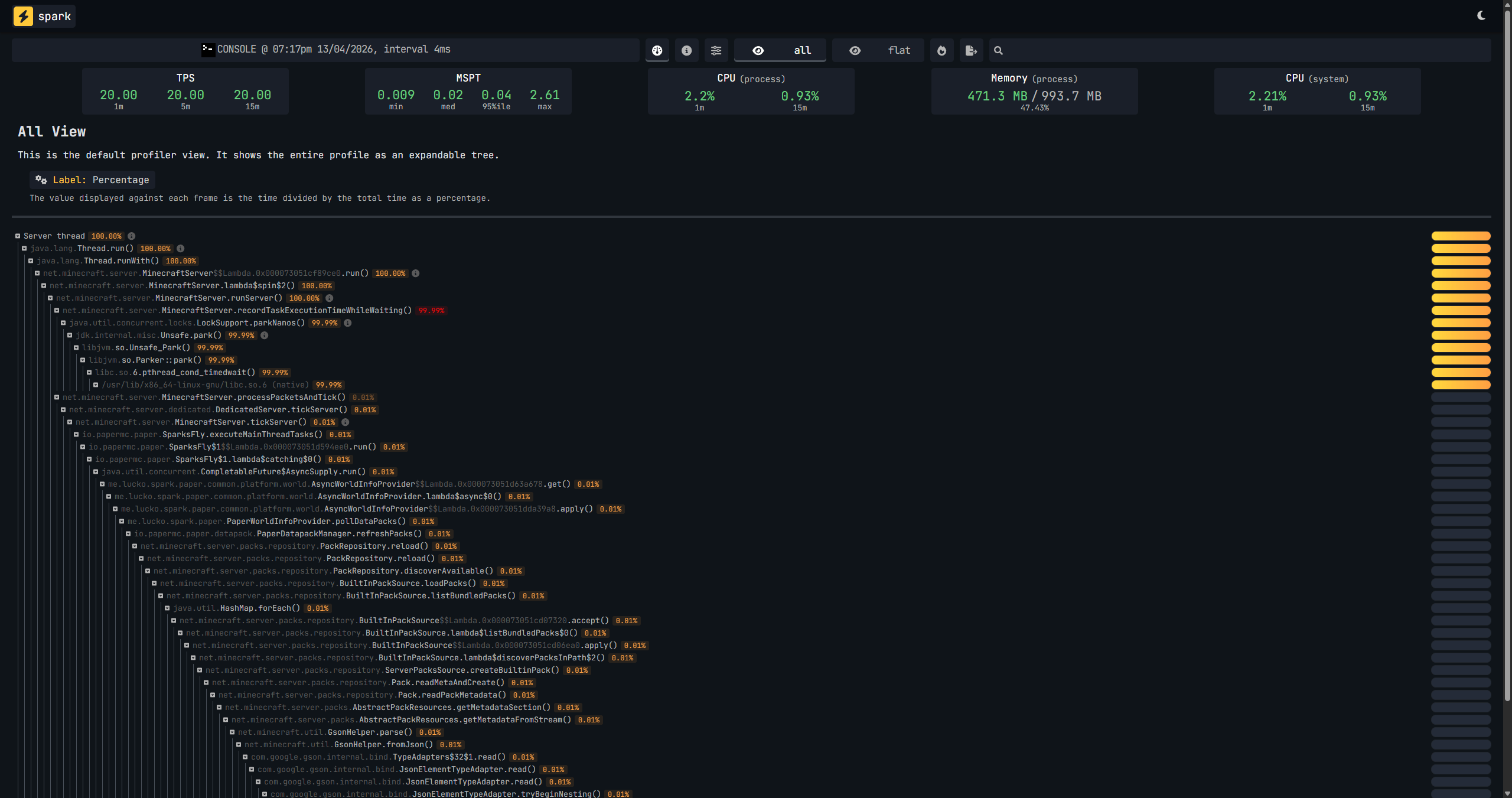
Spark is the standard profiling tool for Minecraft servers. It shows you exactly where your server is spending its tick time, which means you can fix actual problems instead of guessing.
Paper 1.21+ includes Spark by default. For older versions or other server software, download it from spark.lucko.me and drop the .jar into your plugins or mods folder.
Running a profile:
/spark profiler start --timeout 60
This records your server's activity for 60 seconds. Run it during normal gameplay with players online, ideally when the lag is happening. When it finishes, Spark generates a link to a web-based report.
For intermittent lag spikes, use this instead:
/spark profiler start --only-ticks-over 100
This only records ticks that take longer than 100ms, so the report focuses on the actual spikes rather than normal operation.
Quick health check without a full profile:
/spark tps
This shows current TPS, MSPT, and CPU usage in one command.
What to look for in the Spark report:
When you open the report, expand the "Server thread" section. Look at which processes are using the most time. The report breaks it down into categories like entity ticking, chunk loading, and plugin operations. If a single plugin is consuming 30% of your tick time, you've found your problem.
The "Sources" view is especially useful. It shows a separate breakdown for each plugin or mod, making it easy to identify the worst offenders.
Checking Network Latency
If TPS is fine but players complain about lag, check their ping. Open a command prompt or terminal and run:
Windows:
ping -n 5 your.server.ip
Mac/Linux:
ping -c 5 your.server.ip
Don't include the port number, just the IP address.
| Ping | Quality |
|---|---|
| 0-100ms | Good |
| 100-200ms | Acceptable |
| 200-300ms | Noticeable delay |
| 300ms+ | Laggy experience |
If a player's ping exceeds 200ms, they're too far from the server geographically. There's no server-side fix for that. The only solution is hosting the server closer to where your players are located.
How to Fix Server-Side Lag
Work through these in order. Each step builds on the previous one, and the earlier steps tend to have the biggest impact.
Switch to Paper
If you're still running Vanilla, CraftBukkit, or Spigot, switching to PaperMC is the single biggest performance improvement you can make. Paper includes async chunk loading, optimised entity ticking, improved redstone handling, and hundreds of other performance improvements that Spigot doesn't have.
Paper is a drop-in replacement for Spigot. All Bukkit and Spigot plugins work with it. Download the latest build, replace your server .jar, and restart.
For servers that need Forge mod support, Paper isn't an option. Forge and NeoForge servers use different optimization strategies covered in the modded server section.
Optimize server.properties
These settings are available on every server type and have a direct impact on how much work the server does each tick.
# How far chunks are visible to players (default: 10)
# Lower = less RAM usage, fewer chunks to manage
view-distance=8

# How far from a player the world actively ticks (default: 10)
# Lower = fewer entities and block updates processed per tick
simulation-distance=6

# Disable synchronous chunk writing (default: true)
# Set to false for better performance (Paper forces this automatically)
sync-chunk-writes=false
Lowering simulation-distance to 6 has a huge impact. The default of 10 means the server processes a 21x21 area of chunks around every player. At 6, that drops to a 13x13 area - nearly 60% fewer chunks ticking per player.
The trade-off is that mob farms and redstone machines further than 6 chunks from any player will stop working. For most survival servers, this is acceptable. For servers where players build large-scale farms, you might want to keep it at 8.
Players can still see terrain further out if view-distance is higher than simulation-distance. Those extra chunks just won't tick, so they're much lighter on performance. You can also recommend players install client-side mods like Bobby or Farsight to cache chunks locally, giving them extended view distance with zero cost to the server.
Optimize spigot.yml
These settings control how the server handles entities and are some of the most impactful changes you can make on Paper/Spigot servers.
# Entity activation range - mobs outside these ranges stop running AI
entity-activation-range:
  animals: 16
  monsters: 24
  raiders: 48
  misc: 8
  water: 8
  villagers: 16
  flying-monsters: 32

# Merge nearby items and XP orbs into single entities
merge-radius:
  item: 3.0
  exp: 3.0

# Slow down hopper tick rate (default: 1)
# Higher = less frequent checks, better performance
ticks-per:
  hopper-transfer: 8
  hopper-check: 8
entity-activation-range is one of the most effective settings. A cow 20 blocks away doesn't need to pathfind. These values put distant entities to sleep until a player gets close, saving significant tick time without players noticing.
tick-inactive-villagers in spigot.yml is another important one. Set it to false. Villagers are one of the most expensive entities in the game. When this is disabled, they freeze when outside the activation range like other mobs. The trade-off is that villagers won't restock trades or farm while you're far away.
Hopper tick rate controls how often hoppers check for items. The default of 1 means every tick. Setting it to 8 means they check every 8 ticks. Items move slightly slower through sorting systems, but the server load drops significantly if you have a lot of hoppers.
Optimize Paper Configuration
Paper adds its own configuration files with additional performance options.
# paper-world-defaults.yml

# Despawn mobs further from players more aggressively
despawn-ranges:
  ambient:
    hard: 72
    soft: 28
  axolotls:
    hard: 72
    soft: 28
  creature:
    hard: 72
    soft: 28
  misc:
    hard: 72
    soft: 28
  monster:
    hard: 72
    soft: 28

# Prevent InventoryMoveItemEvent for every hopper slot
# Significant performance improvement, but breaks plugins
# that listen to this event
hopper:
  disable-move-event: true

# Despawn specific items faster than the default 6000 ticks
alt-item-despawn-rate:
  enabled: true
  items:
    cobblestone: 300
    netherrack: 300
    sand: 300
    gravel: 300
    dirt: 300
    grass: 300
    pumpkin: 300
    kelp: 300
    bamboo: 300
    sugarcane: 300
    twisting_vines: 300
    weeping_vines: 300
    oak_leaves: 300
    spruce_leaves: 300
    birch_leaves: 300
    jungle_leaves: 300
    acacia_leaves: 300
    dark_oak_leaves: 300
    mangrove_leaves: 300
    cactus: 300
    diorite: 300
    granite: 300
    andesite: 300
    scaffolding: 300
disable-move-event for hoppers is one of the heaviest single-setting optimizations available. It prevents Paper from firing an event for every slot in every hopper every time items move. If you have plugins that monitor hopper transfers (like item-sorting plugins), check compatibility before enabling this.
alt-item-despawn-rate lets you clear junk items faster. Cobblestone from a TNT quarry or leaves from a tree farm don't need to sit on the ground for 5 minutes. Setting them to 300 ticks (15 seconds) keeps the server clean without affecting valuable item drops.
Reduce Entity Lag
Entities are the single most common cause of TPS drops. Here's how to keep them under control.
Set mob spawn limits in bukkit.yml:
spawn-limits:
  monsters: 40
  animals: 8
  water-animals: 3
  water-ambient: 10
  ambient: 5
These values are per-player, not per-world. Lowering them from their defaults (70 monsters, 10 animals) significantly reduces the number of entities the server has to tick.
Slow down mob spawn frequency:
# bukkit.yml
ticks-per:
  monster-spawns: 10
  animal-spawns: 400
  water-spawns: 400
  water-ambient-spawns: 400
  ambient-spawns: 400
Default monster spawn tick rate is 1 (every tick). Setting it to 10 means spawn calculations run twice per second instead of twenty times. Players won't notice the difference.
Use ClearLagg for entity cleanup - ClearLagg can periodically remove ground items and excess mobs. Configure it to exclude items you care about (item frames, armour stands) and schedule cleanup runs during peak times.
Address specific problem areas - If Spark shows that entity ticking is your biggest cost, find out where the entities are. Check for mob farms with hundreds of mobs crammed into a single chunk, villager trading halls with too many villagers, or areas where players have hoarded animals. One player's 500-cow farm can lag the server for everyone.
Pre-generate Your World
Every time a player walks into unexplored terrain, the server has to generate that chunk on the fly. This is CPU-intensive and causes noticeable lag spikes, especially when multiple players are exploring at the same time.
The solution is to generate chunks before players reach them. Chunky is the standard plugin for this.
/chunky radius 5000
/chunky start
This pre-generates a 5,000 block radius from spawn. Run it while no one is online or during off-peak hours, as it's resource-intensive. Depending on your hardware and the radius, it can take anywhere from minutes to hours.
After pre-generating, set a world border to prevent players from generating new chunks beyond your pre-generated area:
/worldborder set 10000
Remember that the Nether is 8x smaller than the Overworld, so set its border accordingly. Both dimensions (plus The End) need their own world border.
Tune Your JVM Startup Flags
Java's default garbage collector settings aren't optimized for Minecraft's memory allocation patterns. Minecraft allocates memory at an extremely high rate - often hundreds of megabytes per second - mostly for short-lived objects. Without proper tuning, garbage collection pauses cause periodic lag spikes.
Aikar's flags are the recommended baseline. They tune the G1 garbage collector specifically for Minecraft workloads.
For servers under 12GB:
java -Xms10G -Xmx10G -XX:+UseG1GC -XX:+ParallelRefProcEnabled -XX:MaxGCPauseMillis=200 -XX:+UnlockExperimentalVMOptions -XX:+DisableExplicitGC -XX:+AlwaysPreTouch -XX:G1NewSizePercent=30 -XX:G1MaxNewSizePercent=40 -XX:G1HeapRegionSize=8M -XX:G1ReservePercent=20 -XX:G1HeapWastePercent=5 -XX:G1MixedGCCountTarget=4 -XX:InitiatingHeapOccupancyPercent=15 -XX:G1MixedGCLiveThresholdPercent=90 -XX:G1RSetUpdatingPauseTimePercent=5 -XX:SurvivorRatio=32 -XX:+PerfDisableSharedMem -XX:MaxTenuringThreshold=1 -Dusing.aikars.flags=https://mcflags.emc.gs -Daikars.new.flags=true -jar server.jar --nogui
For servers with 12GB or more, the G1NewSizePercent, G1MaxNewSizePercent, G1HeapRegionSize, G1ReservePercent, and InitiatingHeapOccupancyPercent values change. Use the flags.sh generator to get the correct flags for your RAM allocation.
Two important notes:
- Set
-Xmsand-Xmxto the same value. This tells Java to allocate all memory upfront rather than growing the heap over time. - Don't allocate all of your system's memory. Leave 1-1.5GB for the operating system and JVM overhead. If your host gives you 8GB, set Xmx to 6500M.
Fix RAM-Related Lag
RAM problems show specific symptoms:
- "Out of Memory" crashes in the console
- RAM usage consistently above 90%
- Lag spikes that coincide with garbage collection activity (check with
/spark gcmonitor) - "Can't keep up!" messages appearing frequently
If these match what you're seeing, your server likely needs more RAM. Check our RAM guide for specific recommendations by server type and player count.
But if your server lags and RAM usage is sitting at 50-60%, RAM is not your problem. Adding more won't help and can actually make things worse by forcing the garbage collector to scan more memory. Look at CPU and entity counts instead.
How to Fix Network Lag
Network lag affects individual players, not the entire server. TPS stays at 20, but specific players experience rubber-banding and delayed actions.
The main causes:
Physical distance - Data takes time to travel. A player in Australia connecting to a server in London will always have high ping. The only real solution is hosting your server closer to your player base.
ISP routing - Sometimes the route between a player and your server takes a detour. This is outside your control, but if multiple players in the same region experience it, it could be a data center issue worth raising with your host.
Server network capacity - If your host is overselling bandwidth or running too many servers on the same node, network performance suffers during peak hours. Lag that only appears at certain times of day, with stable TPS, can point to this.
VPN or unstable connections - Mobile data, public Wi-Fi, and VPNs all add latency and instability. If a single player has issues and no one else does, it's likely on their end.
Client-Side Lag (Low FPS)
If a player sees choppy visuals and stuttering but TPS is 20 and their ping is fine, their computer is struggling to render the game. This isn't a server problem, but you can help reduce the strain:
- Keep entity counts reasonable (fewer entities = less rendering work for clients)
- Avoid excessive particle effects from plugins
- Recommend performance mods like Sodium (Fabric) or Optifine for players with weaker hardware
- Keep view distance reasonable so clients aren't loading massive amounts of terrain
Optimizing Modded Servers
Modded servers lag differently from plugin servers. Forge and NeoForge run mods that add new entities, block types, world generation, and game mechanics that all need to be processed each tick. Paper's optimizations aren't available on modded servers, so you need different strategies.
Use Spark on modded servers too - Spark has Forge and Fabric versions. Profile your server the same way and look for mods that consume excessive tick time.
Fabric optimization mods - If your server runs Fabric, install Lithium (server-side optimizations similar to Paper's) and Starlight (chunk loading improvements). These provide significant performance gains with no gameplay changes.
Reduce view and simulation distance - Modded servers generate more complex terrain and spawn more entity types. Lower these values more aggressively than you would on vanilla. A view distance of 6-8 and simulation distance of 4-6 is common for heavy modpacks.
Monitor mod conflicts - Some mods conflict with each other and cause performance issues that neither mod would cause alone. If you've recently added a mod and lag appeared, try removing it to confirm.
Allocate the right amount of RAM - Modded servers genuinely need more memory than vanilla, but the ceiling still applies. For heavy modpacks like ATM10 or Vault Hunters, 10-12GB is the sweet spot for most servers. Going above 16GB introduces garbage collection issues that hurt more than they help.
Plugins That Help Reduce Minecraft Server Lag
| Plugin | Purpose | Link |
|---|---|---|
| Spark | Performance profiling, TPS/MSPT monitoring, CPU analysis | spark.lucko.me |
| Chunky | World pre-generation | SpigotMC |
| ClearLagg | Entity and item cleanup | SpigotMC |
Spark is a must-have. Install it and keep it installed permanently. You'll need it whenever a performance issue comes up, and it's lightweight enough to run in production with minimal impact.
Minecraft Server Lag FAQ
Why is my Minecraft server lagging with low player count?
Low player counts don't mean low lag. A single player with a massive mob farm, a large redstone build, or an area with hundreds of entities can tank your TPS. Use Spark to profile the server and find out what's consuming tick time. It's also worth checking if your host oversells resources, as shared CPU contention causes lag regardless of player count.
Does more RAM fix Minecraft server lag?
Only if RAM is actually the bottleneck. If your server shows "Out of Memory" errors or RAM usage is consistently above 90%, yes, more RAM will help. But if RAM usage is moderate and TPS is still low, the issue is CPU performance, entity counts, or plugin overhead. Over-allocating RAM can actually make lag worse by increasing garbage collection pauses.
What TPS should a Minecraft server run at?
20 TPS is the target. A healthy server maintains 19-20 TPS consistently. Brief dips to 18 during chunk generation or when many players log in at once are normal. If TPS regularly drops below 18 during normal gameplay, start investigating.
How do I check Minecraft server TPS?
Run /tps in the server console or in-game with operator permissions. On Paper servers, /mspt gives you more detailed tick timing. For comprehensive analysis, install Spark and use /spark tps for a quick check or /spark profiler start for a full profile.
Why does my Minecraft server lag when players explore new areas?
The server has to generate new chunks in real time as players move into unexplored terrain. This is one of the most CPU-intensive tasks the server performs. Pre-generate your world using the Chunky plugin and set a world border to prevent players from venturing beyond the generated area.
What is MSPT in Minecraft?
MSPT stands for Milliseconds Per Tick. It measures how long each server tick takes to process. Since the server needs to complete one tick every 50ms to maintain 20 TPS, any MSPT reading consistently above 50ms means your server is falling behind. MSPT is a more useful metric than TPS for catching performance issues early, because it shows degradation before TPS actually starts dropping.
Why does my Minecraft server lag even with enough RAM?
RAM isn't the only resource that matters. Minecraft servers are primarily single-threaded, meaning they rely heavily on single-core CPU performance. A server with 16GB of RAM but a weak CPU will still lag. Entity counts, unoptimized plugins, excessive chunk loading, and garbage collection pauses are all common causes of lag that aren't solved by adding memory.
Fix the cause, not the symptom
Server lag always has a specific cause. The fastest path to fixing it is measuring first, then applying targeted solutions rather than changing settings at random.
Start with Spark. Check your TPS and MSPT. Profile your server during peak load. The report will show you exactly where your tick time is going, and from there, the fix is usually straightforward: reduce entities, pre-generate chunks, optimize your configs, or address a specific plugin that's consuming too much.
Most of these fixes are free. They just take 15-30 minutes to apply. The performance difference between an unoptimized server and a properly configured one is significant, and your players will notice.
Need the right hardware behind those optimizations? Ryzen 9 7950X3D CPU, DDR5 ECC RAM, Same features, every plan. You're just paying for RAM. View our plans.