The § symbol doesn't work in Java chat. Your gradient prefix shows as raw text. Your MOTD colors break when you restart. Sound familiar?
Minecraft has multiple color code systems depending on where you're using them - chat, MOTD, plugins, or Bedrock Edition. This guide covers all of them with the specific formats you need for each situation.
Minecraft Color Codes Quick Reference
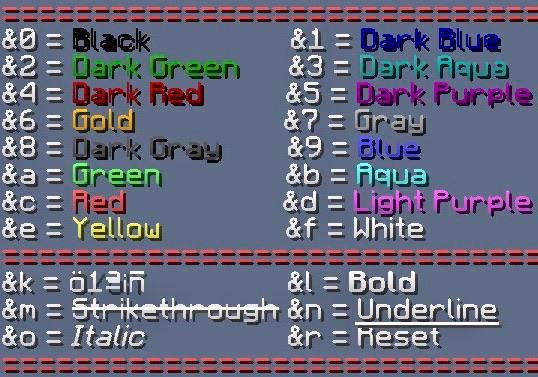
Here's every color code in each format you'll encounter as a server admin.
| Color | Name | Chat (&) | MOTD | Hex Value |
|---|---|---|---|---|
| ■ | Black | &0 | \u00A70 | #000000 |
| ■ | Dark Blue | &1 | \u00A71 | #0000AA |
| ■ | Dark Green | &2 | \u00A72 | #00AA00 |
| ■ | Dark Aqua | &3 | \u00A73 | #00AAAA |
| ■ | Dark Red | &4 | \u00A74 | #AA0000 |
| ■ | Dark Purple | &5 | \u00A75 | #AA00AA |
| ■ | Gold | &6 | \u00A76 | #FFAA00 |
| ■ | Gray | &7 | \u00A77 | #AAAAAA |
| ■ | Dark Gray | &8 | \u00A78 | #555555 |
| ■ | Blue | &9 | \u00A79 | #5555FF |
| ■ | Green | &a | \u00A7a | #55FF55 |
| ■ | Aqua | &b | \u00A7b | #55FFFF |
| ■ | Red | &c | \u00A7c | #FF5555 |
| ■ | Light Purple | &d | \u00A7d | #FF55FF |
| ■ | Yellow | &e | \u00A7e | #FFFF55 |
| ■ | White | &f | \u00A7f | #FFFFFF |
| ■ | Minecoin Gold | &g | \u00A7g | #DDD605 |
Minecoin Gold (&g) only works in Bedrock Edition.
Minecraft Format Codes Reference
Format codes control text styling like bold and italic. These work alongside color codes.
| Format | Chat (&) | MOTD | Description |
|---|---|---|---|
| Bold | &l | \u00A7l | Bold text |
| Italic | &o | \u00A7o | Italic text |
| Underline | &n | \u00A7n | Underlined text |
| Strikethrough | &m | \u00A7m | |
| Obfuscated | &k | \u00A7k | Randomized/scrambled characters |
| Reset | &r | \u00A7r | Resets all formatting to default |
One thing to note: in Java Edition, color codes disable any format codes that came before them. If you type &l&cHello, the text will be red but not bold. Type &c&lHello instead - color first, then formatting.
Bedrock Edition doesn't have this limitation. Format codes persist regardless of order.
Understanding Color Code Formats
Minecraft uses several different color code systems depending on context. Here's when to use each one.
Legacy Codes (§)
The original system uses the section sign (§) followed by a character. This works in Bedrock Edition for chat, signs, books, and world names. In Java Edition, it's limited to server.properties, pack.mcmeta, language files, and server names.
You can't type § directly into Java Edition chat - at least in newer versions.
Ampersand Codes (&)
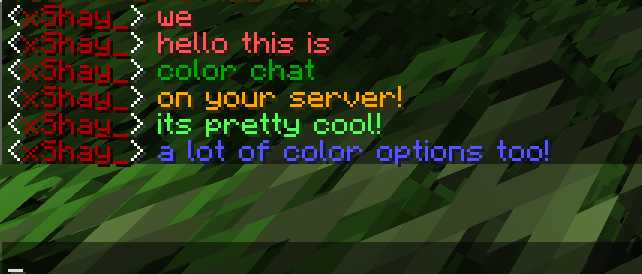
Most plugins convert & to § automatically. This is the standard for EssentialsX, LuckPerms prefixes, and nearly every chat plugin. If you're configuring a plugin, use & codes.
MOTD Codes (\u00A7)
The server.properties file requires Unicode escape sequences. Replace § with \u00A7 for your MOTD colors. Using § directly causes encoding issues that show up as question marks.
Hex/RGB Codes
Minecraft 1.16+ supports full RGB colors using hex codes. The format varies by plugin:
- EssentialsX:
&#RRGGBB(e.g.,&#FF5555) - MiniMessage:
<#RRGGBB>(e.g.,<#FF5555>) - Some plugins:
&x&R&R&G&G&B&B(e.g.,&x&F&F&5&5&5&5)
MiniMessage
The modern standard for Paper and Velocity servers. Uses readable tags like <red>, <bold>, and <gradient:red:blue>. More on this below.
How to Type the § Symbol
The section sign isn't on standard keyboards. Here's how to type it on each platform.
Windows: Hold Alt and type 21 on the numpad (Alt+21). Alternatively, Alt+0167 works on most keyboards.
Mac: Press Option+6.
Linux: Press Ctrl+Shift+U, then type 00A7 and press Enter.
Any platform: Copy this symbol and paste it: §
Most server admins skip the symbol entirely and use & in plugin configs or \u00A7 in server.properties.
Coloring Your Server MOTD
The Message of the Day appears in the server list when players browse multiplayer servers. Adding colors makes your server stand out.
Basic MOTD Configuration
Open your server.properties file and find the motd= line. Use \u00A7 followed by the color code before your text.
motd=\u00A76Welcome to Our Server\u00A7r\n\u00A7aSurvival \u00A77| \u00A7bCreative \u00A77| \u00A7dMinigames
This creates a gold "Welcome to Our Server" on the first line, with green, aqua, and pink text on the second line separated by gray pipes.
Multi-Line MOTD
Use \u00A7r\n to create a line break. The \u00A7r resets formatting before the new line, and \n creates the break.
motd=\u00A7c\u00A7lSERVER NAME\u00A7r\n\u00A77Now with custom textures!
MOTD Troubleshooting
If your MOTD shows question marks or strange characters, the file encoding is wrong. Delete the entire motd line and retype it - don't copy from a webpage that might have hidden characters.


Chat Color Codes for Plugin Servers
Most servers use plugins like EssentialsX to handle chat formatting. Here's how to set it up.
EssentialsX Chat Setup
Install both EssentialsX and EssentialsX Chat. The chat formatting is controlled in the EssentialsX config.yml file.
# Basic format
format: '&7[&a{GROUP}&7] &f{DISPLAYNAME}&7: &f{MESSAGE}'

# Group-specific formats
group-formats:
  Admin: '&7[&c&lAdmin&7] &c{DISPLAYNAME}&7: &f{MESSAGE}'
  VIP: '&7[&6VIP&7] &e{DISPLAYNAME}&7: &f{MESSAGE}'
  Default: '&7{DISPLAYNAME}&7: &7{MESSAGE}'
EssentialsX Color Permissions
Players need permissions to use color codes in chat. The main permission nodes are:
| Permission | Allows |
|---|---|
| essentials.chat.color | All color codes (&0-&f) |
| essentials.chat.format | Format codes (&l, &m, &n, &o, &r) |
| essentials.chat.magic | Obfuscated text (&k) |
| essentials.chat.rgb | Hex colors (&#RRGGBB) |
You can also grant individual colors. For example, essentials.chat.red allows only &c.
LuckPerms Prefix Colors
LuckPerms stores prefixes as meta values. Add color codes directly in the prefix string.
/lp group admin meta setprefix "&c[Admin] &f"
For hex colors with LuckPerms, use the format your chat plugin expects. If you're using EssentialsX Chat:
/lp group vip meta setprefix "&#FFD700[VIP] &f"
If you're using a MiniMessage-compatible chat plugin:
/lp group vip meta setprefix "<#FFD700>[VIP] <white>"

MiniMessage: Modern Color Formatting
MiniMessage is the current standard for Paper, Purpur, and Velocity servers. It uses human-readable tags instead of cryptic codes.
Basic MiniMessage Syntax
<red>This text is red</red>
<bold>This text is bold</bold>
<red><bold>Red and bold</bold></red>
End tags are optional. <red>Hello works the same as <red>Hello</red>.
MiniMessage Color Names
MiniMessage accepts all standard Minecraft color names: black, dark_blue, dark_green, dark_aqua, dark_red, dark_purple, gold, gray, dark_gray, blue, green, aqua, red, light_purple, yellow, white.
<gold>Welcome to the server!
<dark_aqua>Current players: <white>42
MiniMessage Hex Colors
Use <#RRGGBB> for any RGB color.
<#FF6B6B>Custom coral color
<#4ECDC4>Custom teal color
MiniMessage Gradients
Gradients transition smoothly between colors.
<gradient:red:blue>Rainbow text from red to blue</gradient>
<gradient:#FF0000:#00FF00:#0000FF>Three-color gradient</gradient>
MiniMessage Rainbow
The rainbow tag cycles through all colors.
<rainbow>This text has rainbow colors!</rainbow>
MiniMessage Format Tags
| Tag | Effect |
|---|---|
<bold> or <b> | Bold |
<italic> or <i> or <em> | Italic |
<underlined> or <u> | Underline |
<strikethrough> or <st> | Strikethrough |
<obfuscated> or <obf> | Scrambled text |
<reset> | Reset all formatting |
Testing MiniMessage
Use the MiniMessage Web Viewer at docs.papermc.io to test your formatting before adding it to configs. Paste your text and see exactly how it renders.
Creating Gradient Text
Gradient text is popular for server branding, rank prefixes, and announcements.
Using RGB Birdflop
The easiest way to create gradients is with the RGB Birdflop generator at birdflop.com/resources/rgb. Enter your text, pick your colors, and select your output format:
- MiniMessage for Paper/Velocity plugins
- &#RRGGBB for EssentialsX
- &x&R&R&G&G&B&B for legacy plugins
Gradient Examples
MiniMessage format:
<gradient:#FF6B6B:#4ECDC4>[Owner]</gradient>
Legacy format for EssentialsX:
&#FF6B6B[&#E07B7BO&#C18B8Bw&#A29B9Bn͇B9BeʉB9BrNjB9B]
The legacy format applies a different hex color to each character, creating the gradient effect manually.

Color Codes in Signs and Books
Bedrock Edition
Type § directly followed by the color code. On mobile, copy § from elsewhere and paste it. On console, use the on-screen keyboard to find the symbol.
§6Gold text on a sign
§l§cBold red text
Java Edition
Java Edition doesn't allow § in the normal game interface. You have three options:
- Anvils: Rename items with color codes using § (copy-paste the symbol)
- Commands: Use /give or /data to create colored items
- NBT editors: Edit sign/book NBT data directly
For commands, use JSON text components:
/give @p written_book{pages:['{"text":"Hello","color":"red"}']}
Java Edition vs Bedrock Edition Differences
| Feature | Java Edition | Bedrock Edition |
|---|---|---|
| § in chat | Disconnects client | Works normally |
| § in signs | Requires external tools | Works normally |
| § in books | Copy-paste only | Works normally |
| § in world names | Via NBT editor | Works normally |
| Minecoin Gold (&g) | Not supported | Supported |
| Hex colors | 1.16+ via JSON/plugins | Not natively supported |
| Format order | Color before format | Any order |
Bedrock is more permissive with the § symbol but lacks hex color support. Java requires workarounds for § but supports full RGB colors through plugins and JSON.
Troubleshooting Common Color Code Issues
Colors Not Showing in Chat
The player likely lacks permission. Check these permission nodes:
essentials.chat.colorfor EssentialsXchatcolor.usefor other chat plugins
If permissions are correct, ensure EssentialsX Chat is installed - the base EssentialsX plugin doesn't handle chat formatting.
MOTD Shows Question Marks
Your server.properties file has encoding issues. Open it in a text editor that supports UTF-8, delete the motd line entirely, and retype it using \u00A7 codes.
Format Codes Reset After Colors
In Java Edition, apply colors before formats. Change &l&cHello to &c&lHello.
Hex Colors Not Working
Check your Minecraft version (1.16+ required) and verify your plugin supports hex colors. EssentialsX uses &#RRGGBB, while other plugins may use different formats.
Gradient Prefix Shows Raw Text
Your chat plugin doesn't support the gradient format you're using. If you generated a MiniMessage gradient but use EssentialsX, convert it to the &#RRGGBB format instead.
Useful Color Code Tools
Minecraft Color Code Generators
- minecraftitemids.com/color-codes - Preview text with live formatting
- htmlcolorcodes.com/minecraft-color-codes - Quick reference with hex values
Gradient Generators
- birdflop.com/resources/rgb - Multiple output formats, preset gradients
- alonsoaliaga.github.io/generator - Supports emojis and lore formatting
MiniMessage Testing
- docs.papermc.io/adventure/minimessage - Official MiniMessage documentation and web viewer
MOTD Generators
- mctools.org/motd-creator - Visual MOTD builder with live preview
Frequently Asked Questions
What is the color code for red in Minecraft?
Use &c for red text in plugin configs, or \u00A7c in your server MOTD. The hex value is #FF5555.
How do I use color codes in Minecraft chat?
On Bedrock Edition, type § followed by the code (like §c for red). On Java Edition servers, most plugins use & instead (like &c). You'll need the appropriate permission from your server admin.
How do I add colors to my Minecraft server MOTD?
Edit server.properties and use \u00A7 followed by the color code. For example: motd=\u00A76Welcome to My Server creates gold text.
What is MiniMessage?
MiniMessage is a modern text formatting system for Paper and Velocity servers. It uses readable tags like <red> and <bold> instead of § codes, and supports advanced features like gradients and hex colors.
Do color codes work in Minecraft Bedrock?
Yes. Bedrock Edition allows the § symbol in chat, signs, books, and world names. Use §c for red, §l for bold, and so on.
How do I give players permission to use color codes?
For EssentialsX, grant essentials.chat.color for colors and essentials.chat.format for bold/italic/etc. For hex colors, grant essentials.chat.rgb. Add these permissions through your permissions plugin (LuckPerms, PermissionsEx, etc.).
Why don't my colors show in the tab list?
Tab list formatting requires a separate plugin like TAB or TAB Reborn. LuckPerms prefixes don't automatically appear in the tab list without additional configuration.
Can I use hex colors in Bedrock Edition?
Bedrock Edition doesn't natively support hex colors. You're limited to the 16 standard Minecraft colors plus Minecoin Gold.
Using Minecraft Chat Colors on Your Server
Minecraft color codes work differently depending on context. Use & codes for plugin configs, \u00A7 codes for your server MOTD, and MiniMessage tags for modern Paper servers. Hex colors open up millions of possibilities on Java Edition 1.16+, while Bedrock players can type § directly into chat and signs.
The key is matching your format to where you're using it. Plugin expecting &? Use &c. MOTD in server.properties? Use \u00A7c. Modern Paper plugin? Use <red> or <#FF5555>.
Running a server and tired of configuring color codes by hand? Same features on every plan - you're just paying for RAM. View our Minecraft hosting plans