
Trying to place a command block and getting told they're not enabled?
Command blocks are disabled by default on Minecraft servers. This catches most new server owners off guard - you have OP, you're in creative mode, but the game still won't let you use them.
In this guide, we'll cover how to enable command blocks, how to obtain them, and how to actually use them. We'll also include a reference for the essential server commands you'll use alongside them.
Quick Reference: Enable Command Blocks
If you just need the steps, here's the table.
| Edition | Method | Key Setting |
|---|---|---|
| Java Edition | Edit server.properties | enable-command-block=true |
| Bedrock Edition | Server settings | Enable "Allow Cheats" |
For detailed steps, keep reading.
What Are Command Blocks?
Command blocks are blocks that execute commands when powered by redstone. Instead of typing /time set day every morning, you can wire a command block to a button and let players do it themselves.
There are three types of command blocks:
| Type | Color | Behavior |
|---|---|---|
| Impulse | Orange | Runs once when powered |
| Chain | Green | Runs after the previous command block in sequence |
| Repeat | Purple | Runs every game tick (20 times per second) |
Command blocks are disabled by default. A single command block can teleport every player on the server, clear inventories, or change game rules. Mojang keeps them off by default so random players can't abuse them on poorly configured servers.
How to Enable Command Blocks on Your Minecraft Server
Java Edition
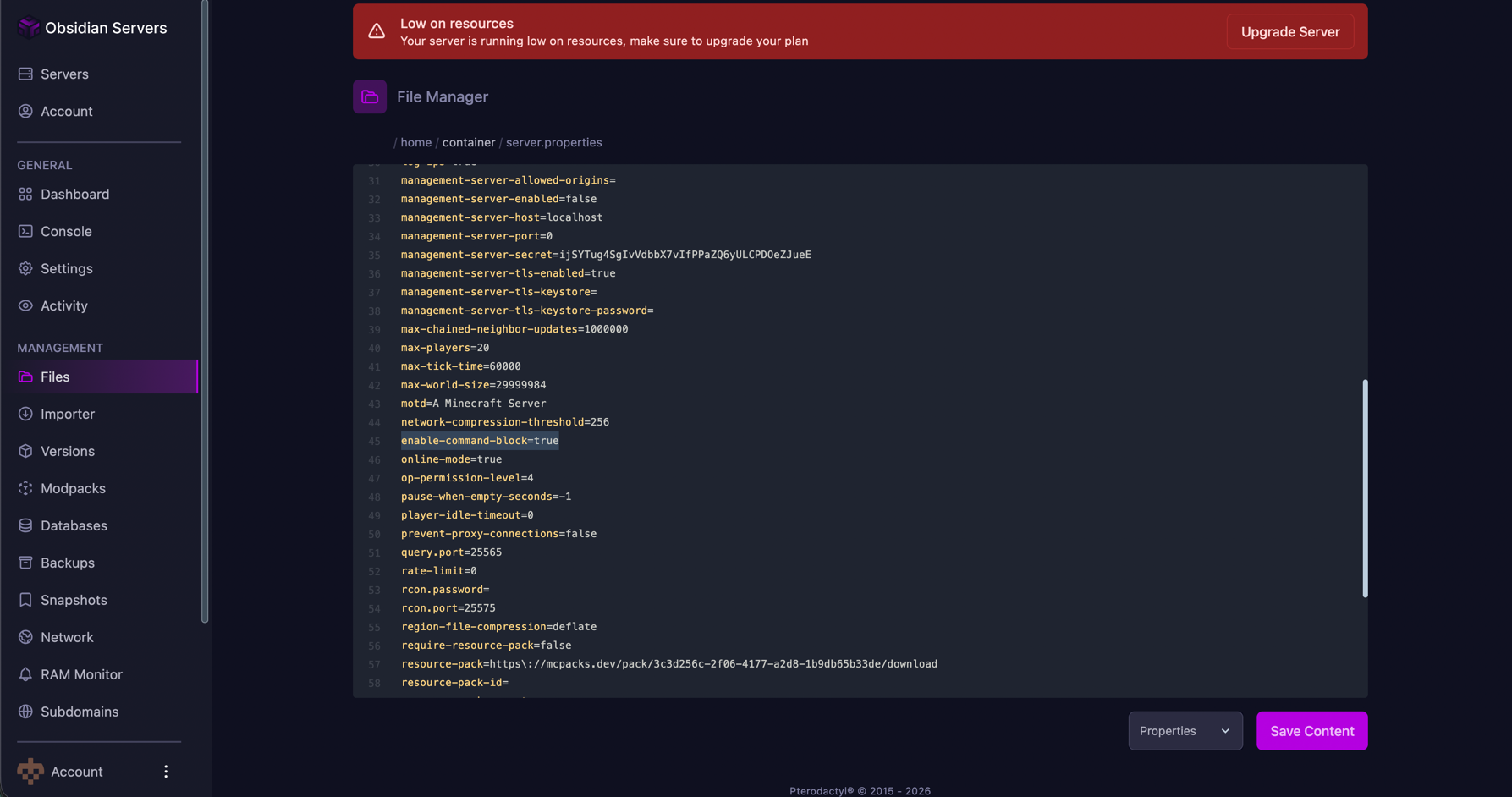
Command blocks are controlled by a single line in your server.properties file.
Step 1: Stop your server
Always stop the server before editing configuration files. If you edit server.properties while the server is running, your changes may be overwritten when it restarts.
Step 2: Open server.properties
Navigate to your server's root directory and open the server.properties file. If you're using a hosting control panel, look for a "Config Files" or "File Manager" section.
Step 3: Find the enable-command-block setting
Look for this line:
enable-command-block=false
Change it to:
enable-command-block=true
If the line doesn't exist, add it anywhere in the file.
Step 4: Save and restart
Save the file and start your server. Command blocks are now enabled.
Bedrock Edition
Bedrock servers handle this differently. Instead of editing a properties file, you need to enable cheats.
For Bedrock Dedicated Servers:
- Stop your server
- Open the server.properties file
- Set
allow-cheats=true - Save and restart
For Realms or hosted servers:
- Open your server settings
- Navigate to the "Game" or "Cheats" section
- Enable "Allow Cheats" or "Activate Cheats"
- Save and restart
Note that enabling cheats on Bedrock permanently disables achievements for that world.
How to Get a Command Block
You won't find command blocks in the creative inventory. The only way to get one is through the /give command.
Requirements:
- Operator (OP) status on the server
- Creative mode to place and edit command blocks
Command to get a command block:
/give @s minecraft:command_block
This gives you one command block. To get a stack of 64:
/give @s minecraft:command_block 64
You can also get the other command block variants directly:
/give @s minecraft:chain_command_block
/give @s minecraft:repeating_command_block
If you're running the command from the server console instead of in-game, replace @s with your username:
give PlayerName minecraft:command_block
Note that console commands don't use the leading slash.
Essential Minecraft Server Commands
Before diving deeper into command blocks, here are the server commands you'll use most often. These work both in chat (with /) and in command blocks (without /).
Player Management Commands
| Command | What It Does | Example |
|---|---|---|
/op <player> | Gives operator status | /op Steve |
/deop <player> | Removes operator status | /deop Steve |
/kick <player> [reason] | Removes player from server | /kick Steve Griefing |
/ban <player> [reason] | Permanently bans player | /ban Steve |
/pardon <player> | Unbans a player | /pardon Steve |
/ban-ip <ip> | Bans an IP address | /ban-ip 192.168.1.1 |
/whitelist add <player> | Adds player to whitelist | /whitelist add Steve |
/whitelist remove <player> | Removes from whitelist | /whitelist remove Steve |
/whitelist on | Enables whitelist mode | - |
/whitelist off | Disables whitelist mode | - |
World and Gameplay Commands
| Command | What It Does | Example |
|---|---|---|
/time set <value> | Changes time of day | /time set day |
/time add <value> | Adds time | /time add 1000 |
/weather <type> [duration] | Changes weather | /weather clear 999999 |
/difficulty <level> | Sets difficulty | /difficulty hard |
/gamemode <mode> [player] | Changes game mode | /gamemode creative Steve |
/tp <target> <destination> | Teleports players | /tp Steve Alex |
/tp <target> <x> <y> <z> | Teleports to coordinates | /tp Steve 100 64 200 |
/setworldspawn <x> <y> <z> | Sets world spawn point | /setworldspawn 0 64 0 |
/spawnpoint <player> <x> <y> <z> | Sets player spawn | /spawnpoint Steve 100 64 200 |
/gamerule <rule> <value> | Changes game rules | /gamerule keepInventory true |
Server Administration Commands
| Command | What It Does |
|---|---|
/list | Shows online players |
/say <message> | Broadcasts message to all players |
/tell <player> <message> | Private message to player |
/save-all | Forces world save |
/save-off | Disables auto-saving |
/save-on | Enables auto-saving |
/stop | Saves and shuts down server |
/reload | Reloads datapacks and functions |
Useful Gamerules
These are the gamerules you'll set most often:
| Gamerule | Default | What It Does |
|---|---|---|
keepInventory | false | Players keep items on death |
doDaylightCycle | true | Time progresses naturally |
doWeatherCycle | true | Weather changes naturally |
mobGriefing | true | Mobs can destroy blocks |
doFireTick | true | Fire spreads |
pvp | true | Players can damage each other |
announceAdvancements | true | Broadcasts advancement messages |
commandBlockOutput | true | Command blocks show output in chat |
sendCommandFeedback | true | Commands show feedback |
How to Use Command Blocks
Placing and Opening
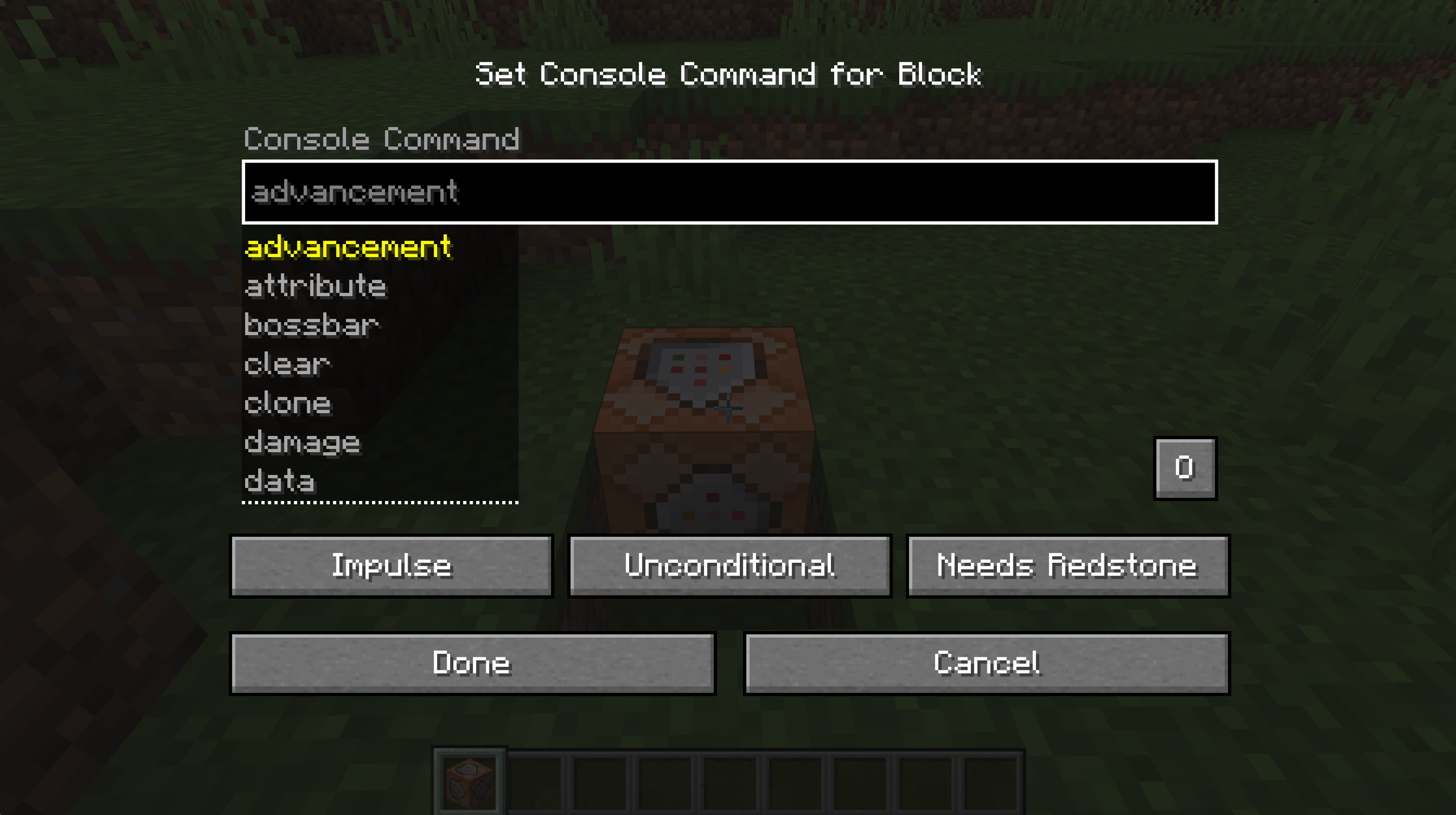
Once you have a command block and you're in creative mode, place it like any other block. Right-click (or use) the command block to open its interface.
Command Block Interface
The interface has several parts:
Command Input - The text field where you enter your command. Commands in command blocks don't need the leading slash, though including it won't cause errors.
Previous Output - Shows the result of the last command execution. Useful for debugging.
Block Type - Toggles between Impulse, Chain, and Repeat.
Condition - Toggles between Conditional and Unconditional. Conditional blocks only run if the previous command block in the chain succeeded.
Redstone - Toggles between "Needs Redstone" and "Always Active". Always Active runs without any redstone signal (useful for Repeat blocks).
Powering Command Blocks
Impulse and Chain command blocks need redstone power to activate unless set to "Always Active".
Common power sources:
- Button (one-time activation)
- Lever (toggle on/off)
- Pressure plate (player-triggered)
- Redstone block (constant power)
- Daylight sensor (time-based)
Repeat command blocks are usually set to "Always Active" since their purpose is continuous execution.
Command Block Examples
Welcome message when players join an area:
Set up a Repeat command block with:
execute as @a[x=100,y=64,z=100,distance=..5] run title @s actionbar "Welcome to Spawn!"
This displays a message to any player within 5 blocks of coordinates 100, 64, 100.
One-click day/night toggle:
Impulse command block with a button:
time add 12000
Each press advances time by half a day.
Clear weather permanently:
Repeat command block set to Always Active:
weather clear 1000000
Teleport hub:
Four Impulse command blocks with buttons, each going to a different location:
tp @p 1000 64 1000
tp @p -1000 64 1000
tp @p 1000 64 -1000
tp @p -1000 64 -1000
Give starter kit to new players:
This requires a more advanced setup with scoreboards to track who has received the kit, but a simple version using Repeat + Chain:
Repeat block:
give @a[tag=!hasKit] minecraft:stone_sword
Chain block (Conditional):
give @a[tag=!hasKit] minecraft:bread 16
Chain block (Conditional):
tag @a[tag=!hasKit] add hasKit
Troubleshooting Command Block Issues
"Command Blocks Are Not Enabled on This Server"
This message appears when you try to edit a command block but enable-command-block is set to false in server.properties.
Fix: Edit server.properties, set enable-command-block=true, and restart the server.
If you've already done this and still see the error:
- Make sure there are no spaces around the equals sign (
enable-command-block=truenotenable-command-block = true) - Check you saved the file
- Fully restart (not reload) the server
- Verify you're editing the correct server.properties file
Can't Place Command Block
You must be in creative mode to place command blocks. Even with OP status, survival or adventure mode won't let you place them.
Fix: Switch to creative mode with /gamemode creative
Also verify you actually have OP status. Run any OP command like /time set day to confirm.
Command Block Not Executing
If the command block places and opens fine but doesn't run:
- Check power - Impulse blocks need redstone signal unless set to "Always Active"
- Check the command syntax - Open the block and look at "Previous Output" for error messages
- Check chunk loading - Command blocks only work in loaded chunks. For always-on systems, place them in spawn chunks
- Check for plugin conflicts - Some plugins (like EssentialsX) override vanilla commands. Try the vanilla syntax or prefix with
minecraft:
Commands Work in Chat But Not in Command Block
Some commands are disabled in command blocks for security:
| Command | Reason Disabled |
|---|---|
/op | Could be used to give unauthorized players OP |
/deop | Could remove legitimate operators |
/stop | Could be used to crash servers repeatedly |
/kick | With @a selector, could lock everyone out |
/ban | Same issue as kick |
If a plugin command doesn't work, the plugin may not support command block execution. Check the plugin documentation.
Commas in Coordinates
A common syntax mistake. Coordinates in commands don't use commas:
Wrong:
tp @p 100, 64, 100
Correct:
tp @p 100 64 100
Complete server.properties Command Block Reference
Here are all the settings in server.properties that affect command blocks:
# Enable or disable command blocks entirely
enable-command-block=true

# Maximum number of commands that can chain together in one tick
# Default is 65536, set to 0 to disable chaining
max-command-chain-length=65536

# Whether to broadcast command block output to ops
broadcast-console-to-ops=true

# Permission level required to use commands
# 1 = moderators, 2 = game masters, 3 = admins, 4 = owners
op-permission-level=4
Frequently Asked Questions
How do I enable command blocks on a Minecraft server?
Open your server.properties file, find the line enable-command-block=false, change it to enable-command-block=true, save the file, and restart your server. For Bedrock servers, enable "Allow Cheats" in your server settings instead.
Why can't I place a command block?
You need both operator (OP) status and creative mode to place command blocks. Even with OP, you cannot place them in survival or adventure mode. Switch to creative with /gamemode creative.
How do I get a command block in Minecraft?
Command blocks aren't in the creative inventory. Use the command /give @s minecraft:command_block to receive one. You must have OP status to use this command.
Do command blocks work in survival mode?
Command blocks can execute commands that affect survival mode players, but you cannot place or edit command blocks while in survival mode yourself. You need creative mode to set them up.
What commands don't work in command blocks?
Commands like /op, /deop, /ban, /kick, and /stop are disabled in command blocks to prevent abuse. Some plugin commands may also not support command block execution.
Why is my command block not working after I enabled it?
Check these in order: verify you saved server.properties correctly with no spaces around the equals sign, confirm you fully restarted (not just reloaded) the server, make sure the command block has redstone power or is set to "Always Active", and check the "Previous Output" for error messages.
How many command blocks can I use?
There's no hard limit on the number of command blocks, but the max-command-chain-length setting (default 65536) limits how many can chain together in a single tick. Performance depends on what commands you're running and your server hardware.
Using Command Blocks on Your Server
Command blocks turn repetitive admin tasks into one-click solutions. Once you've enabled them and understand the three types, you can automate almost anything - from welcome messages to minigame mechanics.
Start simple. A button that sets the time to day. A pressure plate that teleports players. Once you're comfortable, chain them together for more complex systems.
The essential server commands we covered work the same whether you type them in chat or put them in command blocks. The difference is automation. Instead of being online to run /weather clear every time it rains, let a command block handle it.
Running a server that needs reliable command block performance? Same features on every plan - you're just paying for RAM. View our Minecraft hosting plans and see exactly what you're getting.