Are you struggling to get your players to use your server's custom resource pack? Having a consistent visual experience across your server can be challenging when players need to manually download and install texture packs. In this post, we will discuss how you can configure your Minecraft server to automatically prompt players to download your resource pack when they join, covering both the semi-automated method using mcpacks.dev and the manual method of hosting and configuring everything yourself.
Understanding Server Resource Packs
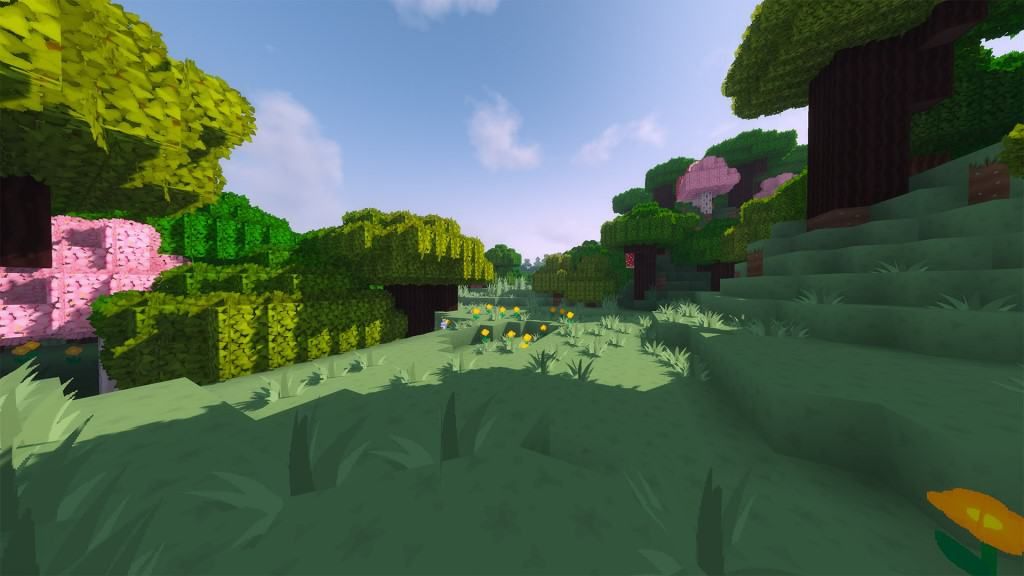
Before getting started, it's important to understand what resource packs are. A resource pack is a texture pack that allows you to change the look and feel of Minecraft. And when used with a Minecraft server, it enables everyone to have a consistent visual experience with the click of a button.
This feature is built directly into Minecraft and works by modifying your server.properties file with a URL to download the resource pack. When a resource pack has been added, players will get a prompt to download your resource pack as soon as they join.
There are a couple of requirements to keep in mind before you start. Your resource pack must be in a .zip format, and cannot be bigger than 100MB for versions 1.15 and newer, or 50MB for versions below 1.15. You will also need a direct download link that will immediately download the resource pack, rather than showing a preview screen.
Method 1: Using mcpacks.dev (Recommended)
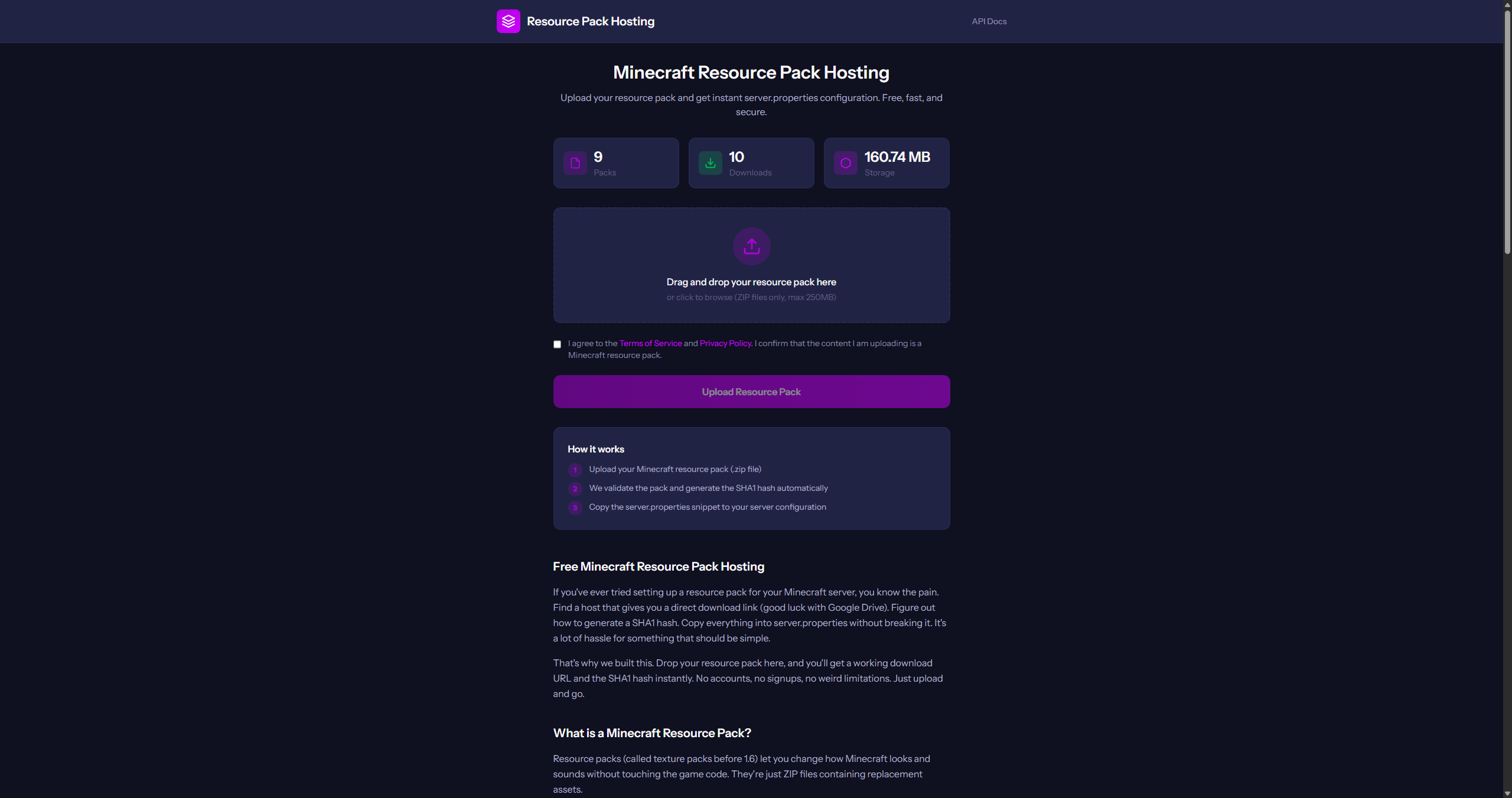
One easy way to add a resource pack to your server is to use mcpacks.dev. This service is free to use and handles SHA1 generation and hosting of your resource pack, all you need to do is add the server.properties variables and that's it
Uploading Your Resource Pack
To get started, navigate to https://mcpacks.dev, and click on the "Drag and drop your resource pack here", then select your resource pack you want to upload.
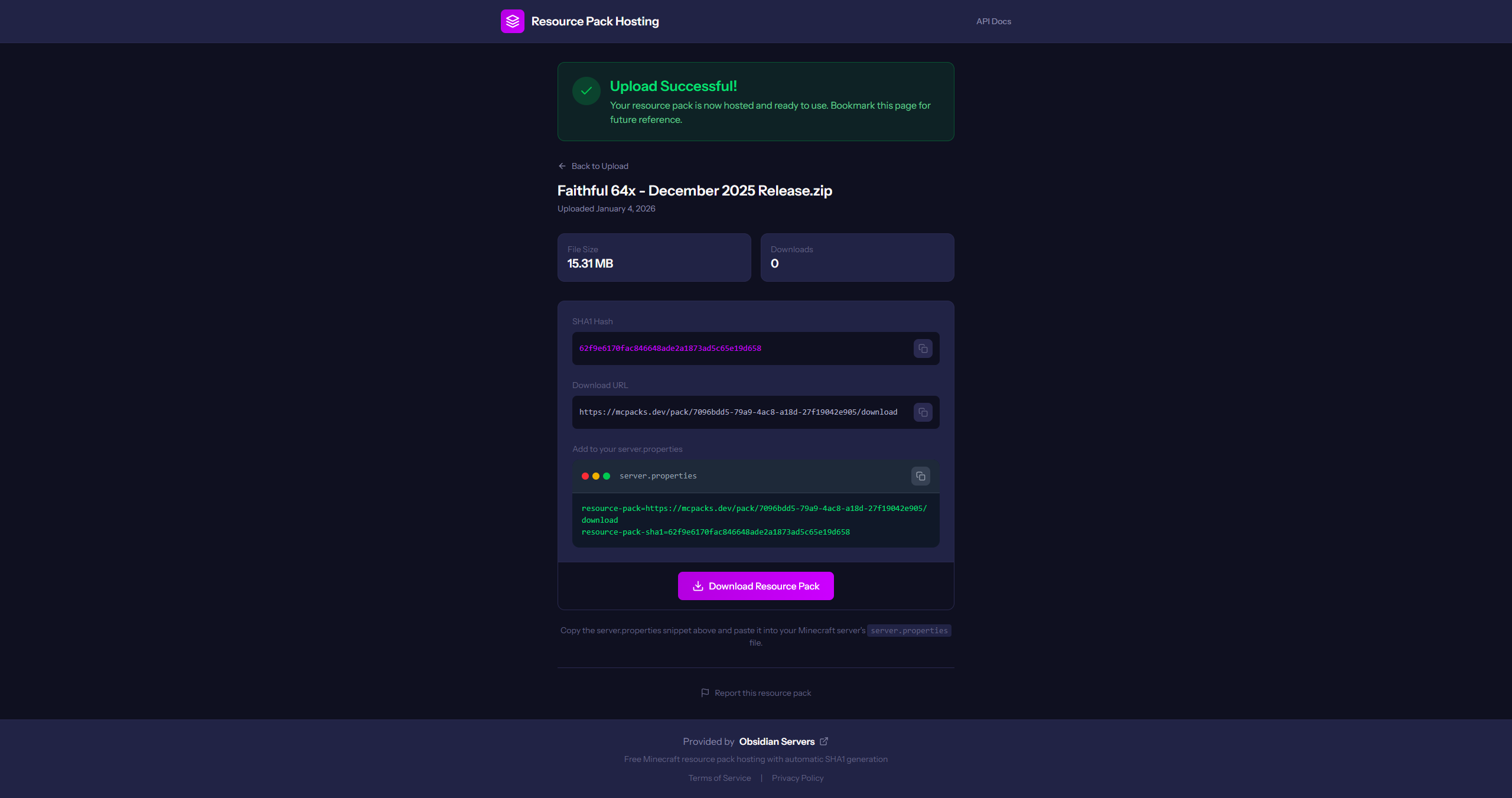
Once your resource pack has uploaded, you'll be presented with this screen, which gives you the SHA1 hash of the resource pack, a download link and the server.properties configuration option, ready for you to copy and paste directly in.
Configuring Your Server
With your resource pack uploaded to mcpacks.dev, you can now configure your server to use it. Open your server.properties file using a text editor and locate the following lines:
resource-pack=
resource-pack-sha1=
Copy the resource-pack property from mcpacks.dev and paste it into your server.properties. And repeat for the resource-pack-sha1 variable too. Your configuration should look similar to this:
resource-pack=https://mcpacks.dev/pack/7096bdd5-79a9-4ac8-a18d-27f19042e905/download
resource-pack-sha1=62f9e6170fac846648ade2a1873ad5c65e19d658
After saving your changes, restart your server for the new configuration to take effect. Players who join your server will be prompted to download the resource pack automatically.
Using mcpacks.dev takes away a lot of the complex and time-consuming parts from your server resource pack, allowing you to drag and drop and it then providing everything you need.
Use Obsidian Servers for Easy Resource Pack Management
Obsidian Servers has a simple drag and drop resource pack manager that will automatically configure everything for you, all you need to do is restart your server. Sign up today
Method 2: Manual Configuration
If you prefer to host files yourself, you can configure everything manually. This method requires a few extra steps, but gives you full control over the process.
Hosting Your Resource Pack
First, you'll need to upload your resource pack to a file hosting service. Popular options include Dropbox, OneDrive, Google Drive, or your own web server.
The biggest requirement is that your link must be a direct download. This means when someone visits the URL, the file starts downloading immediately rather than showing a preview page. You can test this by pasting your link into a browser. If a .zip file downloads right away, you're good to go.
If you're using Dropbox, you'll need to tweak the sharing link. By default, Dropbox links end with dl=0, which shows a preview page. Change this to dl=1 to enable direct downloads:
Original: https://www.dropbox.com/s/abc123/mypack.zip?dl=0
Modified: https://www.dropbox.com/s/abc123/mypack.zip?dl=1
Generating the SHA1 Hash
Next, you'll need to generate a SHA1 hash for your resource pack. The SHA1 hash tells Minecraft whether the file has changed, so players know when to download a new version. Without it, players won't get updates when you modify your pack.
You can generate a SHA1 hash using your computer's terminal, or an online tool.
On Windows (Command Prompt or PowerShell):
certUtil -hashfile "C:\path\to\yourpack.zip" SHA1
On Mac or Linux (Terminal):
shasum /path/to/yourpack.zip
Using an online tool:
Head to emn178's SHA1 File Checksum tool, upload your .zip file, and copy the result. It will look something like this:
3a7bd3e2360a3d29eea436fcfb7e44c735d117c5
Updating server.properties
With your direct download URL and SHA1 hash ready, open your server.properties file and find these lines:
resource-pack=
resource-pack-sha1=
Add your URL and hash:
resource-pack=https://www.dropbox.com/s/abc123/mypack.zip?dl=1
resource-pack-sha1=3a7bd3e2360a3d29eea436fcfb7e44c735d117c5
Save the file and restart your server. Players will now be prompted to download your resource pack when they join.
The manual method takes a bit more effort, but it's useful when you need more control over hosting.
Configuring Resource Pack Requirements
Another important aspect of server resource packs is deciding whether to make the pack optional or required. By default, Minecraft presents the resource pack download as optional, meaning players can decline and still join your server. However, there may be situations where your server experience depends heavily on the resource pack, such as when using custom models or modified user interfaces.
Making the Resource Pack Required
If you want to require players to accept the resource pack in order to join your server, you can enable this option in your server.properties file. Locate the following line:
require-resource-pack=false
Change the value from "false" to "true":
require-resource-pack=true
With this option enabled, players who decline the resource pack download will be disconnected from the server. This ensures that everyone on your server has the same visual experience, but it may also deter some players who prefer not to use server resource packs.
Adding a Custom Prompt Message
For servers running Minecraft 1.17 or newer, you can customize the message that players see when they are prompted to download the resource pack. This uses Minecraft's raw JSON text format, which means you need to structure your message as a JSON object.
Locate the following line in your server.properties file:
resource-pack-prompt=
Add your message using the JSON text format. Note that colons must be escaped with a backslash:
resource-pack-prompt={"text"\:"Please accept our resource pack for the best experience!"}
You can also add formatting like colors and bold text:
resource-pack-prompt={"text"\:"Welcome to our server!","color"\:"gold","bold"\:true}
For more complex messages with multiple styles, you can use an array of text components:
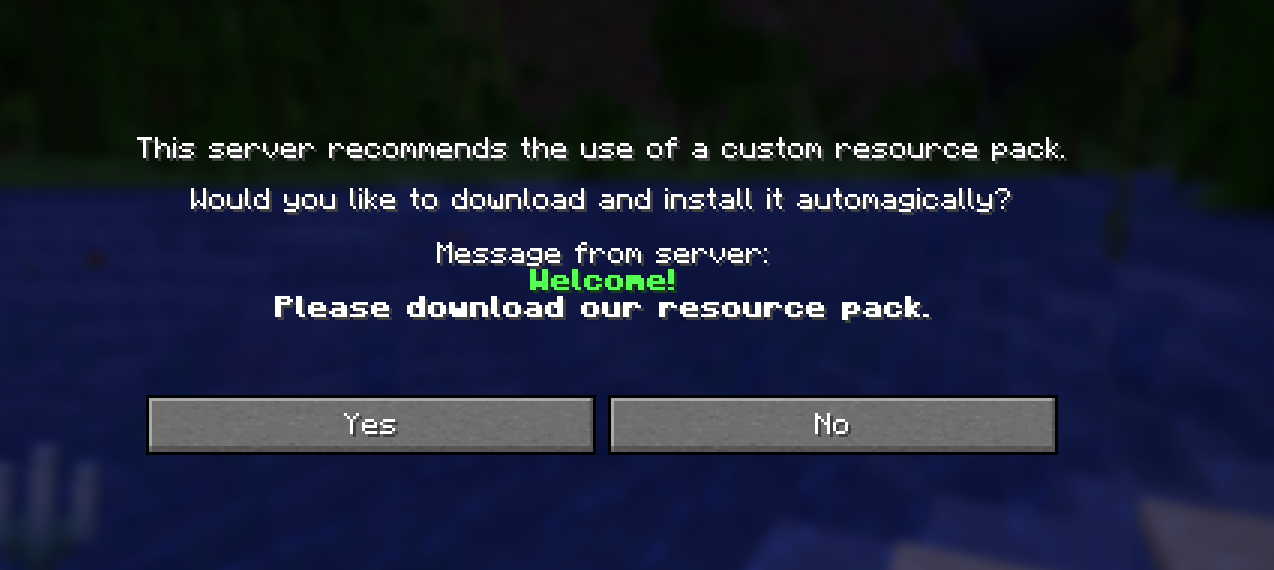
resource-pack-prompt=[{"text"\:"Welcome!\\n","color"\:"green","bold"\:true},{"text"\:"Please download our resource pack.","color"\:"white"}]
Note the double backslash \\n for line breaks inside the JSON. This message will be displayed to players alongside the download prompt.
Complete Configuration Reference
To help you understand all of the available options, here is a complete reference of the resource pack settings in server.properties:
# The direct download URL for your resource pack .zip file
resource-pack=

# The SHA1 hash of your resource pack (recommended for proper update detection)
resource-pack-sha1=

# Whether players must accept the resource pack to join (true or false)
require-resource-pack=false

# A custom message shown in the download prompt (Minecraft 1.17 and newer)
resource-pack-prompt=
Troubleshooting Common Issues
When setting up server resource packs, you may encounter some issues that can prevent players from downloading your resource pack. Understanding these issues and their solutions can help you resolve problems quickly and get your resource pack working for all players.
Resource Pack Not Downloading
If players are not receiving a download prompt when they join your server, the most likely cause is that your URL is not a direct download link. Test your URL by pasting it into a web browser. If you see a webpage rather than an immediate file download, you need to modify your link or use a different hosting solution.
For Dropbox users, ensure that you have changed "dl=0" to "dl=1" at the end of your sharing link. For other hosting services, consult their documentation to find the correct format for direct download links.
Players Have Outdated Textures
If players are seeing old versions of your resource pack after you have made updates, the issue is likely related to the SHA1 hash. Every time you modify your resource pack and upload a new version, you must generate a new SHA1 hash and update the resource-pack-sha1 value in your server.properties file.
Without the correct hash, Minecraft believes that players already have the current version of the pack and does not prompt them to download the updated file.
Download Starts But Fails
If the download begins but does not complete successfully, the issue may be with the structure of your resource pack .zip file. When you open your .zip file, the pack.mcmeta file and the assets folder should be at the root level, not contained within another folder.
A common mistake is to compress a folder that contains your resource pack rather than compressing the contents directly. Ensure that your .zip file is structured correctly to resolve this issue.
Pack Works for Some Players But Not Others
If your resource pack works correctly for some players but causes issues for others, the problem may be related to version compatibility. Different versions of Minecraft support different resource pack formats, which is specified by the pack_format value in your pack.mcmeta file.
Ensure that your pack_format value matches the Minecraft version your server is running. Players using incompatible versions may experience broken textures or encounter errors when attempting to use your pack.
Adding resource packs to servers
Adding a resource pack to your Minecraft server is an effective way to provide a consistent visual experience for all of your players. Whether you choose to use the semi-automated approach with mcpacks.dev or prefer the manual configuration method, the setup process is straightforward once you understand the requirements.
Using mcpacks.dev is recommended for most server owners, as it handles file hosting and SHA1 hash generation automatically, saving time and reducing the potential for configuration errors. The manual method provides more flexibility and control, making it suitable for servers with specific requirements or larger resource packs.
By implementing server resource packs and configuring them according to your needs, you'll ensure that players have access to your custom textures from the moment they join, without requiring them to follow external download instructions or manually install files. This creates a smoother onboarding experience and helps establish the unique visual identity of your server.