The Game Panel includes a built-in modpack installer that lets you browse and install modpacks directly from your browser. It supports modpacks from several popular platforms including Modrinth, CurseForge, Feed The Beast, ATLauncher, Technic, and Voids Wrath.
Accessing the Modpack Installer
- Log in to the Game Panel
- Select your server
- In the left menu, click Game
- Select Modpacks
Browsing Modpacks
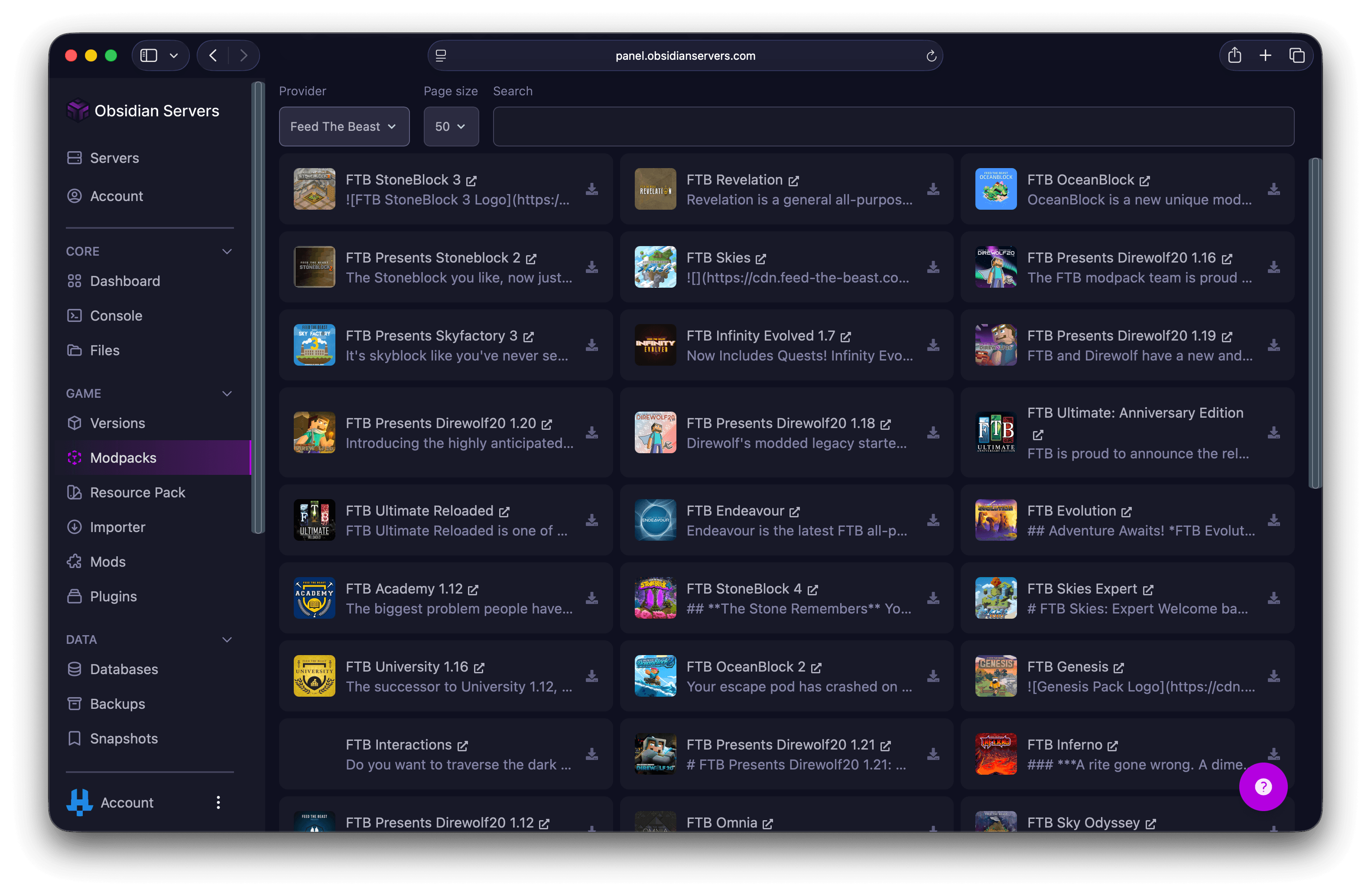
At the top of the page, you can filter your search using the following options:
- Provider - Choose which platform to browse from (Modrinth is selected by default)
- Search - Type a modpack name or keyword to search
- Page Size - Choose how many results to show per page (10, 25, or 50)
Each modpack in the results shows its name, description, icon, and a link to its page on the provider's website.
Installing a Modpack
- Find the modpack you want to install
- Click the download icon next to it
- In the dialog that appears, select the version you want to install from the dropdown
- Choose whether to delete all server files before installing. This removes everything currently on your server before the modpack is installed. This is recommended for a clean installation, but it cannot be undone.
- Confirm the installation
The server will begin the modpack installation process. This may take a few minutes depending on the size of the modpack.
Warning: Modpack installations and updates can cause world corruption. You are strongly advised to create a backup before installing or updating a modpack. See Using the Backup System for details.
Updating a Modpack
To update to a newer version of a modpack you already have installed, follow the same installation steps and select the newer version. It is recommended to enable the "delete all server files" option for a clean update, but make sure you have backed up your world and any custom configurations first.
Tips
- Always back up first - Create a backup before installing or updating a modpack, especially if you have an existing world you want to keep
- Check the modpack's requirements - Some modpacks need a significant amount of RAM. If your server struggles to start or runs slowly after installing a modpack, you may need to upgrade your plan
- Keep your world safe - If you enable "delete all server files" during installation, your world and any other files will be permanently removed. Download a backup of anything you want to keep beforehand
- Switching modpacks - If you want to switch to a different modpack, consider using a snapshot to save your current setup so you can switch back later. See Using the Snapshot System for details
Need Help?
If you encounter any issues or need further assistance, you can reach us through:
- Support Ticket
- Discord Server - use the
/supportcommand - Email: [email protected]