Backups save a copy of your server files and can be restored at any time from the Game Panel. All backups are stored off-site on a separate system from your server, providing reliable long-term redundancy and protection against hardware issues.
Finding Your Backups
- Log in to the Game Panel
- Select your server
- In the left menu, click Data
- Select Backups
You will see three tabs:
- Manual Backups - Backups you create yourself
- Automatic Backups - Backups created automatically by the system
- Database Backups - Manual backups of your MySQL databases
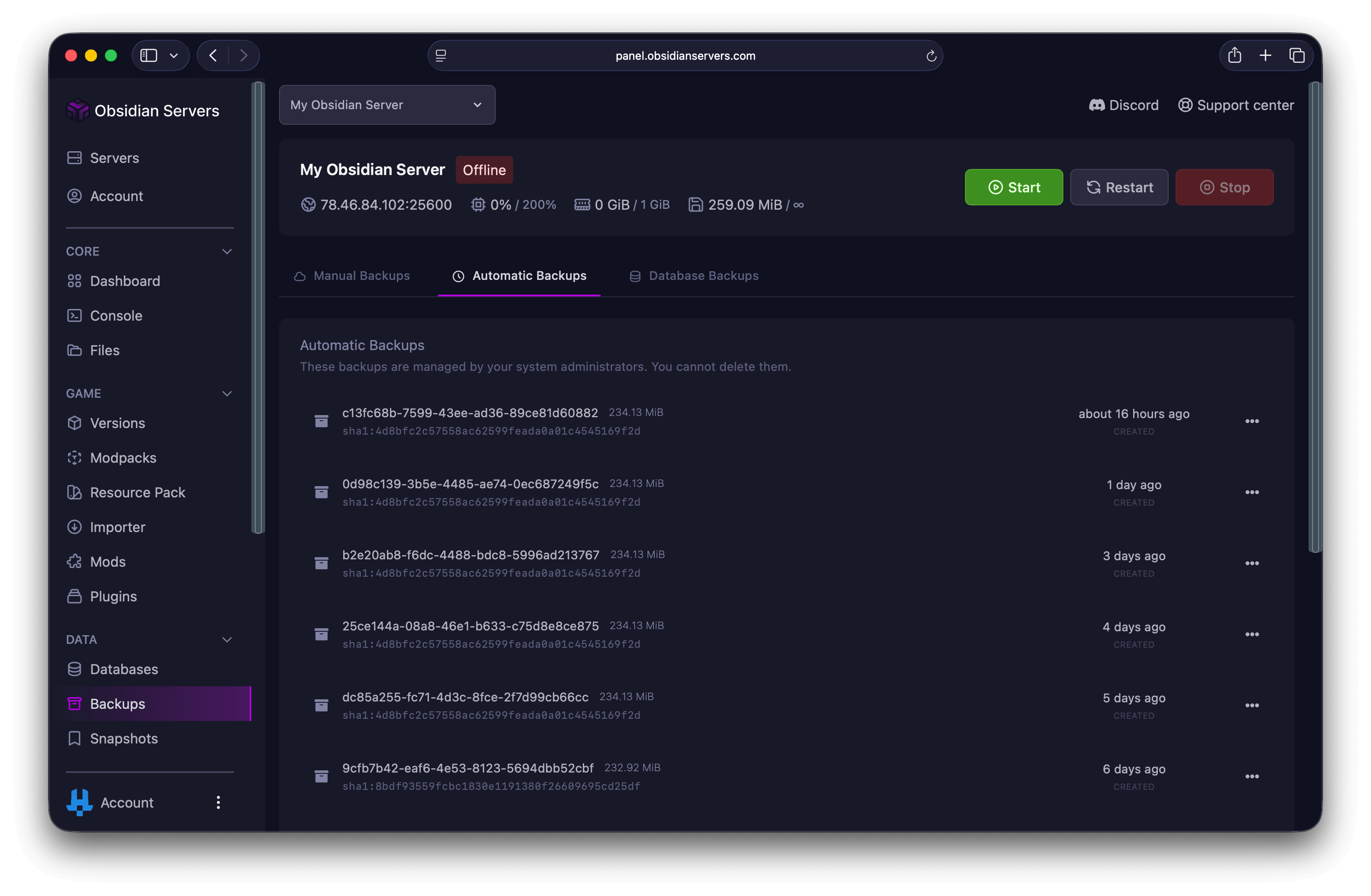
Automatic Backups
Automatic backups are created by the system on a regular schedule to ensure your server is always protected.
- Backups are created automatically at regular intervals
- Each backup is retained for up to 30 days
- Older backups are automatically removed to make room for new ones
- You do not need to do anything - the system handles everything
Automatic backups include all server files (plugins, configurations, worlds, etc.) but do not include MySQL databases. Databases must be backed up manually (see the Database Backups section below).
You can download and restore automatic backups, but you cannot delete or lock them.
Creating a Manual Backup
Manual backups give you control over when backups are created. This is useful before making major changes to your server.
- Go to Backups in the Game Panel
- Make sure you are on the Manual Backups tab
- Click Create Backup
- Enter a name for your backup (optional but recommended)
- Optionally enter any files or directories to ignore (one per line)
- Optionally tick Lock to create the backup in a locked state, preventing accidental deletion
- Click Create
The backup will begin processing. Depending on your server size, this may take a few minutes. Your current backup count and limit are shown at the top of the page.
Tip: Give your backups descriptive names like "Before plugin update" or "Working 1.21 config" so you can easily identify them later.
Ignoring Files
When creating a manual backup, you can exclude files or directories by entering patterns in the ignored files field. This is useful for skipping large files you do not need to back up, such as old world folders. You can also create a .pteroignore file in your server's root directory to set permanent exclusion patterns.
Restoring from a Backup
Restoring a backup will replace your current server files with the files from the backup. This works for both manual and automatic backups.
- Find the backup you want to restore (from either the Manual or Automatic Backups tab)
- Click the three dots next to the backup
- Select Restore
- Choose whether to delete all files before restoring - when enabled, all current server files are removed before the backup is extracted. When disabled, backup files are extracted over your existing files, overwriting any that share the same name.
- Confirm the restoration
Your server will be stopped automatically during the restore process. You will not be able to control the server, access the file manager, or create additional backups until the restore is complete.
Downloading a Backup
You can download any backup (manual or automatic) to your local computer for safekeeping.
- Find the backup you want to download
- Click the three dots next to the backup
- Select Download
Restoring Specific Files Only
If you only need to restore certain files rather than everything, you can download the backup and extract just the files you need.
- Download the backup to your computer
- Extract the archive
- Find the specific files you need
- Upload them to the correct location on your server using the File Manager or SFTP
- Restart your server if needed
This is useful when you accidentally deleted a specific file, want to restore a plugin configuration without affecting other settings, or need to recover a world file but keep your current plugins.
Locking and Unlocking Backups
You can lock important manual backups to prevent accidental deletion.
- Click the three dots next to a backup and select Lock
- Locked backups display a lock icon next to their name
- To unlock, click the three dots and select Unlock
Locked backups cannot be deleted until they are unlocked.
Database Backups
MySQL databases are not included in automatic backups. You must back them up manually.
Creating a Database Backup
- Go to Backups in the Game Panel
- Click the Database Backups tab
- Click Create Backup
- Select the database you want to back up
- Click Create
Restoring a Database Backup
- Click the Database Backups tab
- Find the backup you want to restore
- Click the three dots next to the backup
- Select Deploy
- Confirm the deployment
Warning: Deploying a database backup will replace your current database contents.
Downloading a Database Backup
- Click the Database Backups tab
- Click the three dots next to the backup
- Select Download
Best Practices
- Back up before major changes - Always create a manual backup before installing new plugins, updating your server version, modifying world files, or making significant configuration changes
- Back up your databases separately - Automatic backups do not include MySQL databases. Create a database backup before updating plugins that store data in MySQL, such as economy or permissions plugins
- Download important backups - For extra protection, download copies of critical backups to your local computer
- Use descriptive names - Names like "Before 1.21 update" or "Pre-modpack install" make it easy to find the right backup later
Need Help?
If you have questions about backups or need assistance restoring your server:
- Support Ticket
- Discord Server - use the
/supportcommand - Email: [email protected]