Have you ever seen a server name in the multiplayer list with a rainbow of colours, or a sign in game with bold red text? Those are made using Minecraft's built-in colour and formatting codes. They are short codes you can type into text to change how it looks in the game.
This guide walks you through what they are, how to use them, and where they work.
What Are Colour Codes?
A colour code is just two characters - an & symbol followed by a number or letter. When Minecraft sees one of these codes in text, it changes the colour of whatever comes after it.
For example, if you type &cHello, Minecraft will show the word "Hello" in red.
You do not need to install anything to use them - they are built into Minecraft.
The 16 Colours
Minecraft has 16 built-in colours you can use. Here they all are with their codes:
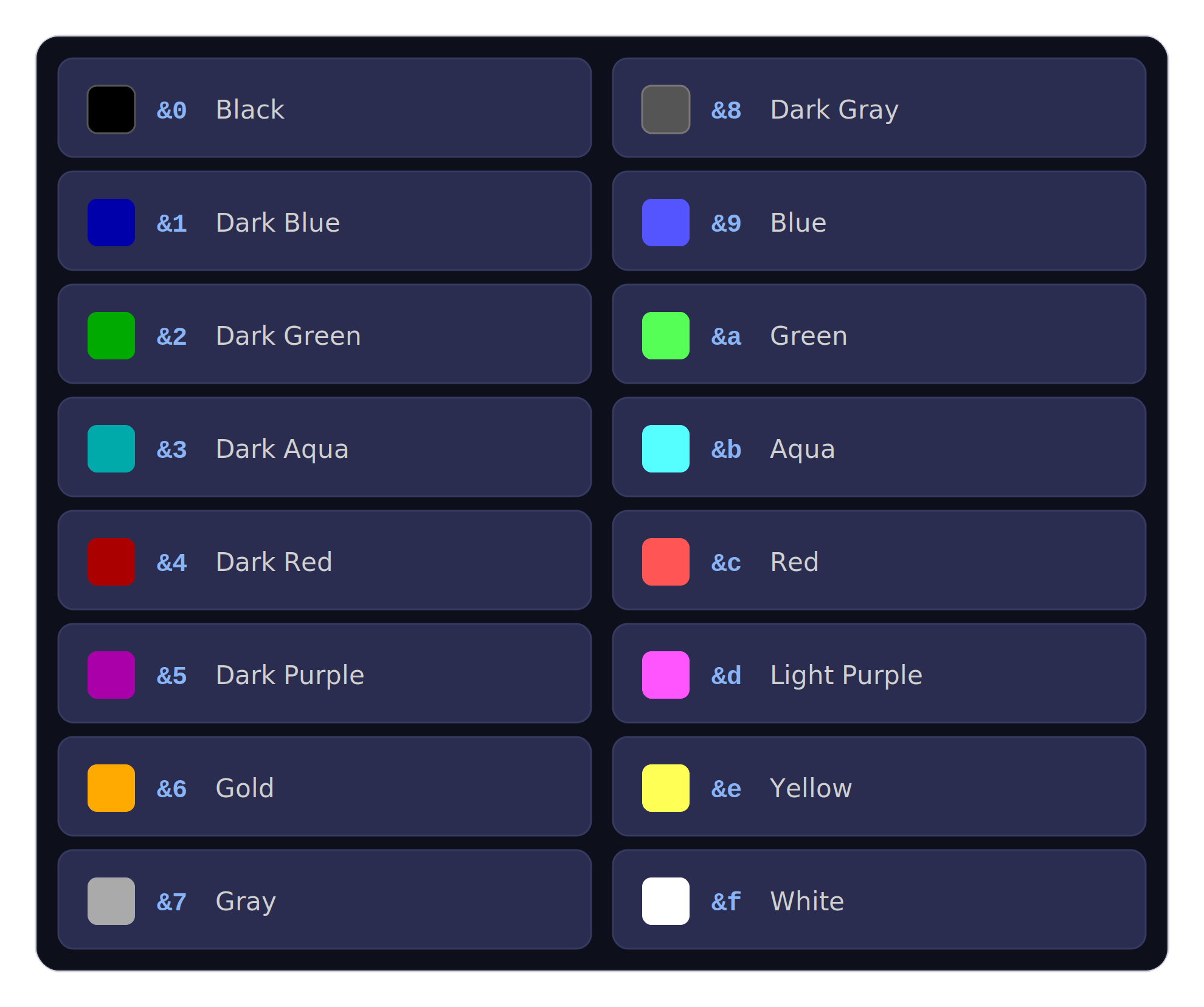
| Code | Colour | Hex |
|---|---|---|
&0 |
Black | #000000 |
&1 |
Dark Blue | #0000AA |
&2 |
Dark Green | #00AA00 |
&3 |
Dark Aqua | #00AAAA |
&4 |
Dark Red | #AA0000 |
&5 |
Dark Purple | #AA00AA |
&6 |
Gold | #FFAA00 |
&7 |
Gray | #AAAAAA |
&8 |
Dark Gray | #555555 |
&9 |
Blue | #5555FF |
&a |
Green | #55FF55 |
&b |
Aqua | #55FFFF |
&c |
Red | #FF5555 |
&d |
Light Purple | #FF55FF |
&e |
Yellow | #FFFF55 |
&f |
White | #FFFFFF |
Formatting Codes
As well as colours, there are also codes for formatting the text itself - making it bold, italic, underlined, and so on. These work the same way as colour codes.
| Code | Format | Description |
|---|---|---|
&k |
Obfuscated | Text appears as random, constantly changing characters |
&l |
Bold | Makes text bold |
&m |
Draws a line through the text | |
&n |
Underline | Underlines the text |
&o |
Italic | Makes text italic |
&r |
Reset | Resets any colour and formatting back to default |
How to Use Them
Using a code is simple - just type the code right before the text you want to change. The code itself is not shown in game, only the effect it has.
A Simple Example
Let's say you want the word "Welcome" to appear in green. You would type:
&aWelcomeIn game, this would show up as the word Welcome in green.
Adding More Colours
Any text after a code will use that colour until you change it. For example:
&aWelcome to &cMy Server"Welcome to" will be green, and "My Server" will be red because a new code was used.
Combining Colours and Formatting
You can stack codes to apply more than one at a time. Put the colour code first, then the formatting code:
&c&lWarning!This makes "Warning!" appear in bold red.
Resetting Back to Normal
Once you use a code, it stays in effect until you change it or use the reset code &r. This is useful when you want to go back to the default colour mid-sentence:
&aHello &rworld"Hello" will be green, and "world" will be in the default white.
Where You Can Use Codes
Colour and formatting codes work in most places where you can enter text on a server, including:
- Server MOTD - The message shown next to your server in a player's multiplayer list. You can set this in
server.propertiesusing themotdsetting - Signs - Text on signs placed in the world
- Books - Written books in game
- Chat messages - When sent by plugins or commands
- Plugin configurations - Most plugins let you use colour codes when setting up messages, prefixes, and other text (such as group prefixes in LuckPerms)
- Command text - Like when using
/giveto create custom item names
A common beginner use case is customising your server's MOTD to make it stand out in the multiplayer list.
Why Do I Sometimes See `§` Instead of `&`?
You may sometimes see codes written with § instead of & (for example, §cRed text). The § symbol is the one Minecraft uses internally, but it is harder to type. Most plugins and configurations will accept & and convert it for you automatically, so sticking with & is usually easier.
Advanced: Hex Colour Codes
Minecraft 1.16 and later supports full hex colour codes in some places, which lets you pick any colour you want, not just the 16 built-in ones. The format usually looks like this:
&#FF5733Custom colour textThis is a more advanced feature and not every plugin supports it, so check the documentation for whatever you are using. For most beginners, the 16 built-in colours are more than enough.
Tips for Beginners
- Start simple - stick with a couple of colours to begin with, too many can look messy
- Use
&rto reset when you want to return to normal text in the middle of a line - Keep it readable - fancy colours are fun, but make sure players can still easily read what you have written
- Quotes in config files - in some files (like YAML configs), you may need to wrap your coloured text in quotes to stop the file from breaking. If your config stops working after adding codes, this is usually why
- Preview tools - there are free websites where you can type text with codes and see exactly how it will look in game. Search for "Minecraft colour code previewer" to find one
Need Help?
If you need help getting colour codes working in a specific place, feel free to reach out to us:
- Support Ticket
- Discord Server - use the
/supportcommand - Email: [email protected]