The RAM Monitor tracks your server's memory usage and sends alerts when it exceeds a threshold you set. This helps you identify memory issues before they cause lag or crashes.
Contents
Getting Started
Notification Methods
Configuration
Accessing the RAM Monitor
- Log in to the Game Panel
- Select your server
- In the left menu, click Management
- Select RAM Monitor
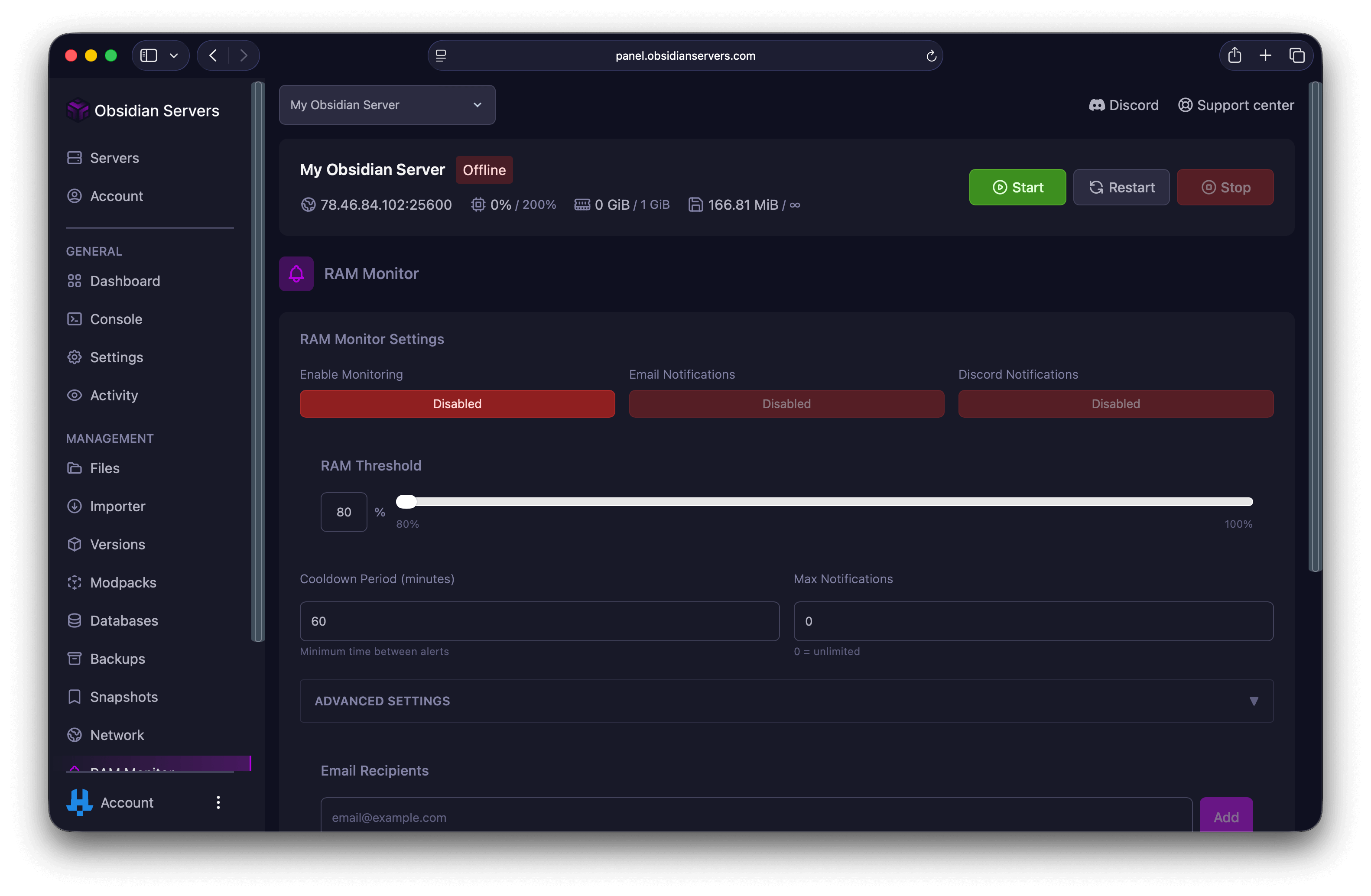
Enabling Monitoring
Before you can receive alerts, you need to enable the RAM Monitor.
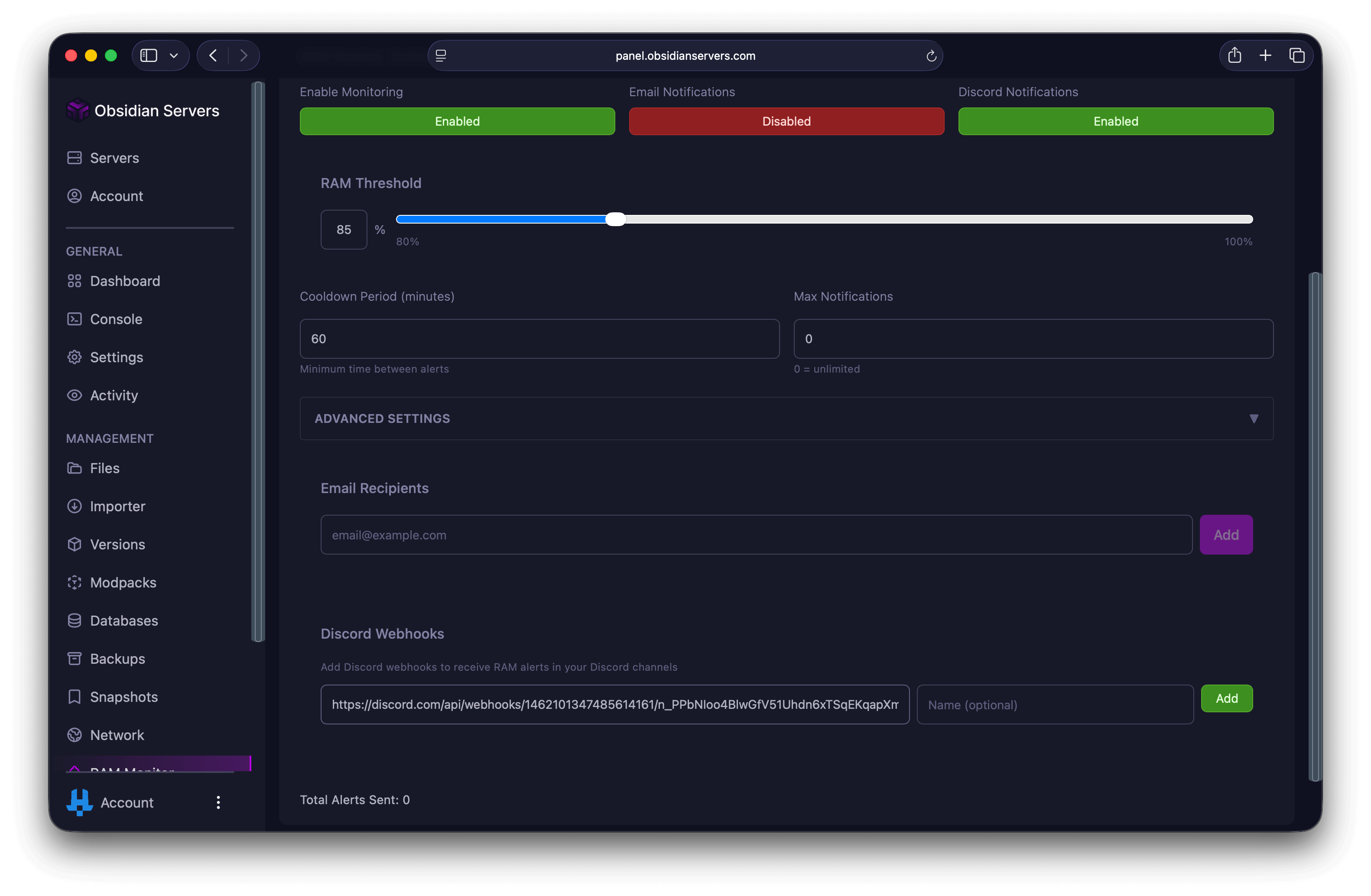
- Find the Enable Monitoring toggle at the top of the page
- Click the button to toggle between Enabled (green) and Disabled (red)
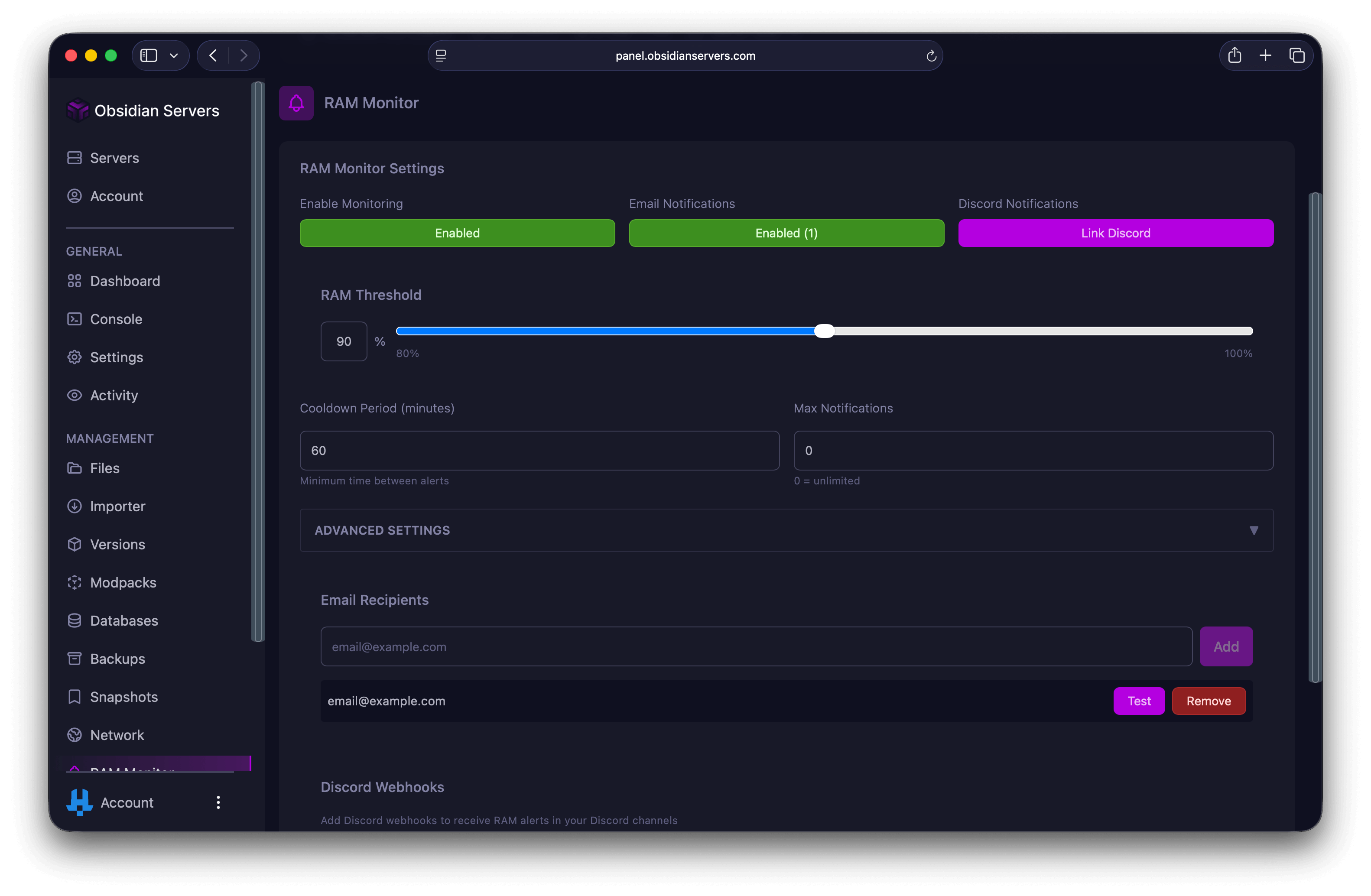
When monitoring is disabled, no alerts will be sent regardless of your other settings.
Setting the RAM Threshold
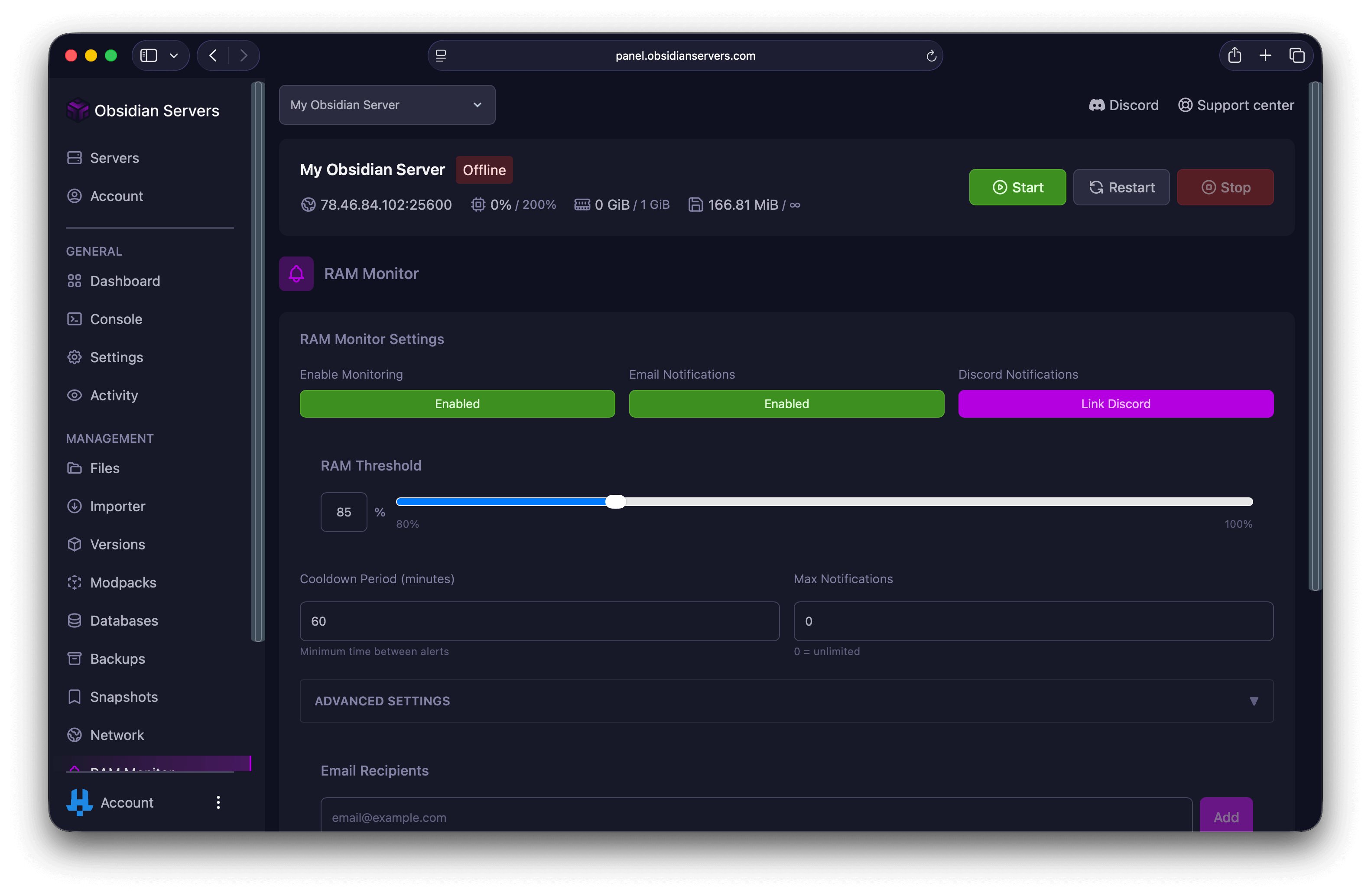
The RAM threshold determines at what percentage of memory usage you will receive alerts.
Using the Slider
- Find the RAM Threshold section
- Drag the slider to your desired percentage
- The setting saves automatically when you release the slider
Using the Input Field
- Click on the percentage input box next to the slider
- Type your desired threshold (e.g., 85)
- Press Enter or click outside the box to save
Recommended Thresholds
| Threshold | Use Case |
|---|---|
| 70-75% | Early warning, plenty of time to react |
| 80-85% | Balanced, recommended for most servers |
| 90-95% | Critical alerts only |
Tip: Start with 80-85% and adjust based on how your server normally runs. If you receive too many alerts during normal operation, increase the threshold.
Email Notifications
Receive RAM alerts via email to any address you choose.
Enabling Email Notifications
- Ensure monitoring is enabled (green)
- Click the Email Notifications button to toggle it to Enabled (green)
Adding Email Addresses
- Scroll down to the Email Recipients section
- Enter an email address in the input field
- Click Add
- The email will appear in the list below
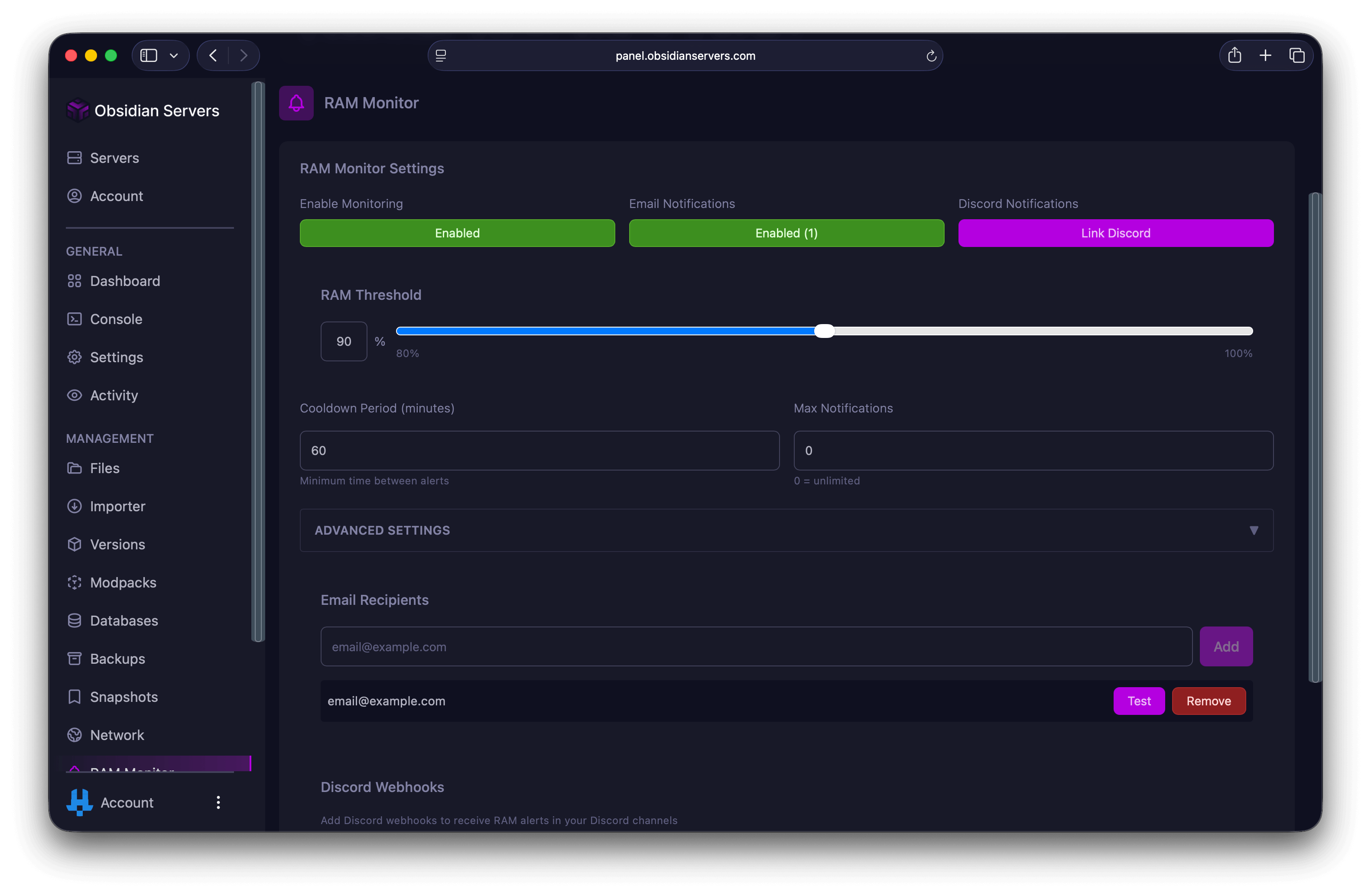
You can add multiple email addresses to receive alerts.
Testing Email Delivery
To verify emails are working:
- Find the email in your recipients list
- Click the Test button next to it
- Check your inbox for a test notification
Removing an Email
- Find the email in your recipients list
- Click the Remove button
- Confirm the removal
Discord DM Notifications
Receive RAM alerts as direct messages to your Discord account.
Linking Your Discord Account
If you have not linked your Discord account:
- Click the Link Discord button under Discord Notifications
- A popup window will open
- Log in to Discord if prompted
- Authorise the connection
- The window will close automatically
Enabling Discord DMs
Once your Discord account is linked:
- Click the Discord Notifications button to toggle it to Enabled (green)
- You will now receive DMs when RAM exceeds your threshold
Disabling Discord DMs
- Click the Discord Notifications button to toggle it to Disabled (red)
Discord Webhook Notifications
Send RAM alerts to a Discord channel using webhooks. This is useful for team servers where multiple people need to see alerts.
Creating a Discord Webhook
First, create a webhook in your Discord server:
- Open your Discord server
- Go to Server Settings > Integrations > Webhooks
- Click New Webhook
- Choose the channel where alerts should be posted
- Copy the Webhook URL
Adding a Webhook to RAM Monitor
- Scroll down to the Discord Webhooks section
- Paste your webhook URL in the Discord Webhook URL field
- Optionally enter a name to identify this webhook
- Click Add
Testing a Webhook
- Find the webhook in your list
- Click the Test button
- Check your Discord channel for a test message
Removing a Webhook
- Find the webhook in your list
- Click the Remove button
- Confirm the removal
Note: If a webhook shows a "Failed" badge, it means the last notification attempt failed. Check that the webhook still exists in your Discord server settings.
Cooldown Period
The cooldown period prevents you from being spammed with notifications.
What It Does
After an alert is sent, no more alerts will be sent until the cooldown period has passed, even if RAM remains above the threshold.
Setting the Cooldown
- Find the Cooldown Period (minutes) field
- Enter the number of minutes between alerts
- Press Enter or click outside the box to save
Recommended Values
| Minutes | Use Case |
|---|---|
| 5-10 | Urgent monitoring, want to know immediately if issues persist |
| 15-30 | Balanced, recommended for most servers |
| 60+ | Less frequent alerts, check server manually |
Maximum Notifications
Limit the total number of alerts sent to prevent notification fatigue.
What It Does
Once the maximum number of notifications has been sent, no more alerts will be sent until the counter resets.
Setting the Limit
- Find the Max Notifications field
- Enter your desired limit (0 = unlimited)
- Press Enter or click outside the box to save
When to Use This
- Set to 0 (unlimited) if you always want to be notified
- Set a limit if you only want to be alerted a few times, then investigate manually
- Use with Auto-Reset (see Advanced Settings) to automatically reset the counter
Advanced Settings
Click on Advanced Settings to expand additional configuration options.
Auto-Reset
Auto-Reset automatically resets your notification counter when RAM usage drops below a certain level for a specified duration.
Enable Auto-Reset:
- Click the Enable Auto-Reset toggle to turn it on (green)
Auto-Reset Threshold (%):
- The RAM percentage that must be reached for the reset timer to start
- Default: 50%
- Example: If set to 50%, RAM must drop below 50% to begin the reset countdown
Auto-Reset Duration (minutes):
- How long RAM must stay below the threshold before the counter resets
- Default: 30 minutes
- Example: If set to 30, RAM must stay below your reset threshold for 30 minutes before notifications reset
Custom Webhooks
Send alerts to any webhook service, not just Discord.
Adding a Custom Webhook:
- Enter a name (optional) to identify the webhook
- Enter the webhook URL
- Click Add
Testing:
- Click Test to send a test notification to the webhook
Use Cases:
- Slack notifications
- Microsoft Teams
- Custom monitoring systems
- Home automation (e.g., IFTTT)
Viewing Alert Statistics
At the bottom of the RAM Monitor page, you can see:
- Total Alerts Sent - The total number of notifications sent
- Last Alert - When the most recent alert was sent
This helps you understand how often your server is exceeding the threshold.
Best Practices
Start Conservative
Begin with a higher threshold (85%) and lower it if needed. It is better to receive fewer meaningful alerts than to be overwhelmed with notifications.
Use Multiple Notification Methods
Set up both email and Discord notifications to ensure you never miss an important alert.
Set Appropriate Cooldowns
A 15-30 minute cooldown works well for most servers. Too short and you will be spammed; too long and you might miss recurring issues.
Review Alerts Regularly
If you are receiving frequent alerts:
- Check the Troubleshooting Server Lag guide
- Consider optimising your server
- You may need to upgrade your RAM
Use Auto-Reset Wisely
Enable Auto-Reset if you want the notification counter to reset automatically after issues resolve. This is useful for servers that occasionally spike but return to normal.
Need Help?
If you have questions about the RAM Monitor or need help with memory issues:
- Support Ticket
- Discord Server - use the
/supportcommand - Email: [email protected]