This guide explains how to upload and use a custom server JAR file on your Minecraft server.
Before You Start
For most users, the built-in Version Changer is the easiest way to change your server software. It includes all the most popular server JARs including Paper, Spigot, Purpur, Forge, Fabric, and Vanilla across all supported Minecraft versions.
See Choosing a Server Version (JAR Types) to learn about different server software options and how to use the Version Changer.
When to Use a Custom JAR
Only upload a custom JAR if you have a specific requirement that the Version Changer cannot meet:
- You need a specific build number not available in the Version Changer
- You are using server software we do not officially support
- You have a custom or modified JAR file
- You need an older version for compatibility with specific mods or plugins
Prerequisites
Before following this guide, you will need:
- Your server JAR file downloaded to your computer
- Access to the Game Panel
Contents
- Uploading the JAR File
- Configuring Your Server to Use the JAR
- Verifying the JAR is Running
- Troubleshooting
Uploading the JAR File
Upload your JAR file to the server using either the File Manager or SFTP.
Using the File Manager
The File Manager is the quickest method for uploading a single JAR file.
- Log in to the Game Panel
- Select your server
- Go to Core > Files
- Make sure you are in the root directory (the main server folder)
- Click Upload
- Select your JAR file or drag and drop it into the browser
- Wait for the upload to complete
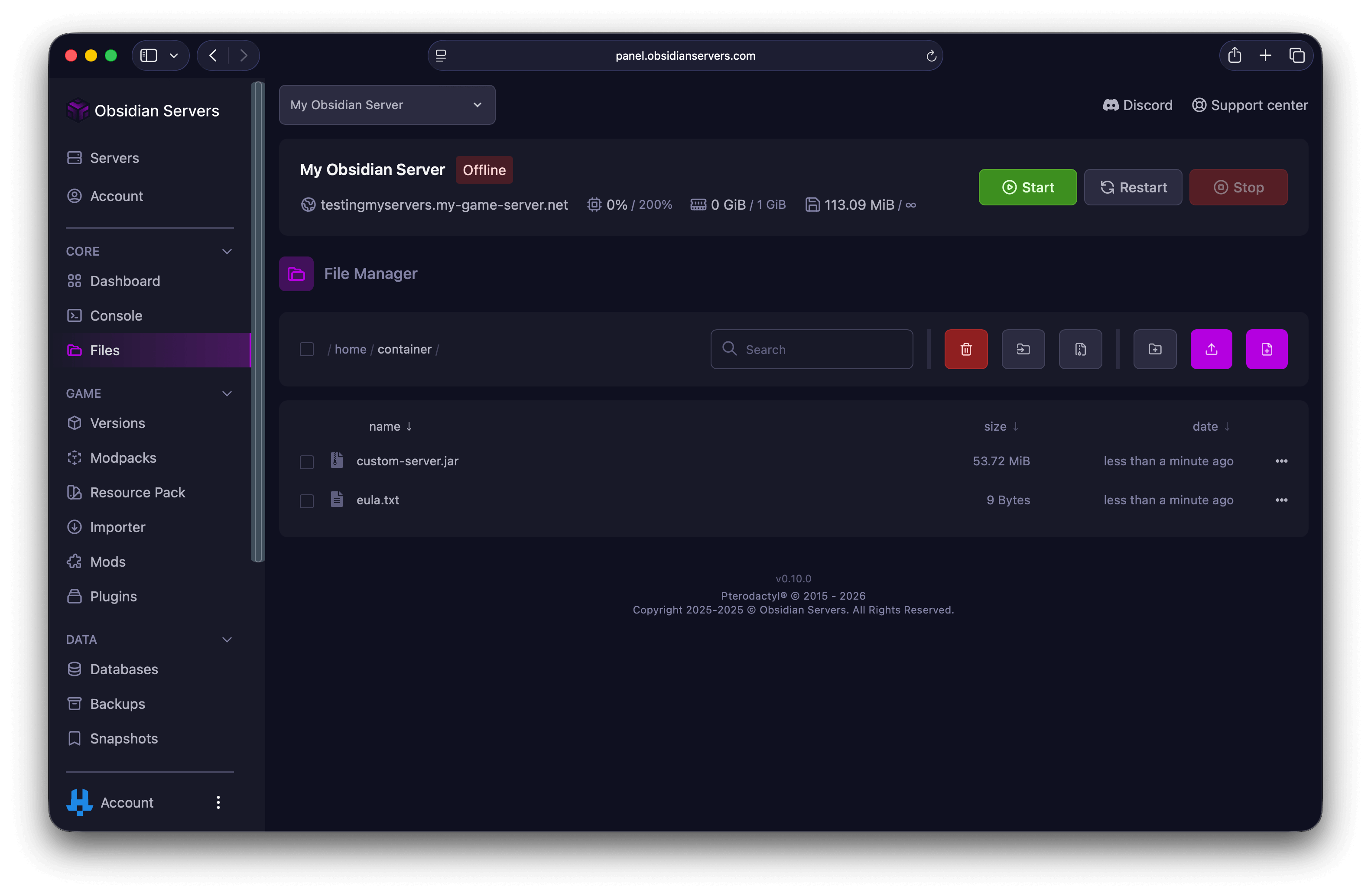
For detailed instructions on using the File Manager, see How to Access and Manage Server Files.
Using SFTP
SFTP is recommended for larger JAR files or slower connections.
- Connect to your server via SFTP (see How to Access and Manage Server Files)
- Navigate to the root directory on your server
- Upload your JAR file from your local computer
Configuring Your Server to Use the JAR
After uploading, you need to tell the server which JAR file to run.
Step 1: Find the Startup Configuration
- In the Game Panel, go to Settings > Startup
- Look for the Server Jar File variable
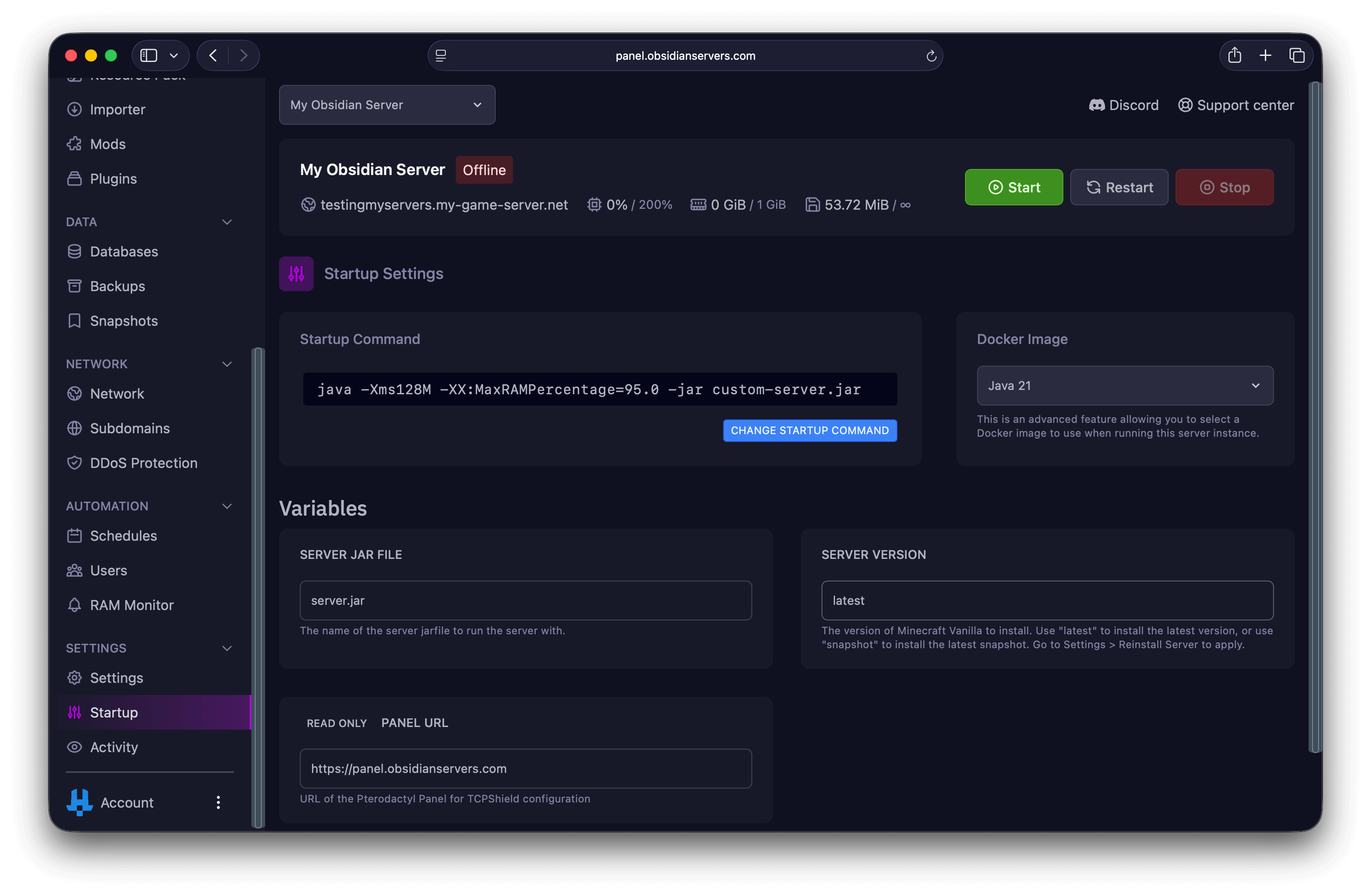
Step 2: Update the JAR Filename
- In the Server Jar File field, enter the exact filename of your uploaded JAR
- Example:
paper-1.20.4-496.jar - Example:
forge-1.20.1-47.2.0.jar
- Example:
- Make sure the filename matches exactly, including capitalisation
Step 3: Restart Your Server
- Go to the Console page
- If your server is running, click Stop
- Once stopped, click Start
- Watch the console for any errors
Verifying the JAR is Running
After starting your server, verify it is using the correct JAR:
- Check the console output for the server software name and version
- Look for startup messages indicating which JAR loaded
- In-game, you can use
/version(if you have operator permissions) to check
Example console output:
[Server] Starting minecraft server version 1.20.4
[Server] Loading Paper 1.20.4-496
Troubleshooting
Server Fails to Start
"Error: Unable to access jarfile"
- The filename in the Startup settings does not match the uploaded file
- Check for typos or incorrect capitalisation
- Verify the JAR file is in the root directory, not a subfolder
"Error: Invalid or corrupt jarfile"
- The JAR file may be corrupted or incomplete
- Try re-downloading the JAR file
- Ensure the file downloaded and uploaded completely
Server Starts But Crashes Immediately
Check the console for error messages:
- Java version mismatch - Some newer server versions require Java 17 or 21. Contact support if you need a Java version change.
- Missing libraries - Forge servers need additional library files. Run the installer properly to generate all required files.
- Incompatible plugins/mods - Remove plugins or mods and test with a clean server.
Plugins or Mods Not Loading
- Ensure you uploaded the correct server type (Forge for mods, Paper/Spigot for plugins)
- Check that plugin/mod versions match your Minecraft version
- Review console logs for specific error messages
World Not Loading
- If switching server software, ensure your world is compatible
- Switching between modded (Forge/Fabric) and plugin (Paper/Spigot) servers may cause world issues
- Always create a backup before changing server software
Tips for Custom JARs
Keep Your JAR Updated
Custom JARs do not update automatically. Regularly check for new versions and upload updates manually.
Name Your Files Clearly
Use descriptive filenames that include the version number:
- Good:
paper-1.20.4-496.jar - Avoid:
server.jar(makes it hard to identify the version later)
Backup Before Switching
Always create a backup before changing your server JAR. See Using the Backup System for instructions.
Remove Old JAR Files
After successfully switching to a new JAR, delete old JAR files to save disk space and avoid confusion.
Related Guides
- Choosing a Server Version (JAR Types) - Learn about different server software options
- How to Access and Manage Server Files - Detailed file upload instructions
- Using the Backup System - Create backups before making changes
Need Help?
If you are having trouble with a custom JAR:
- Support Ticket
- Discord Server - use the
/supportcommand - Email: [email protected]
When contacting support, please include:
- The JAR file you are trying to use
- Any error messages from the console
- What you have already tried