Resource packs let you customise the textures, sounds, and visual assets players see when they join your server. When a resource pack is configured, players receive a prompt to download it when they connect.
The Game Panel has a built-in Resource Pack Manager that handles hosting and configuration for you automatically through mcpacks.dev, a free resource pack hosting service built by Obsidian Servers. You can also use mcpacks.dev on its own if you prefer to configure things manually.
You can also follow along with our video guide.
Using the Resource Pack Manager (Recommended)
The easiest way to add a resource pack to your server is through the Game Panel's Resource Pack Manager. It uploads your pack to mcpacks.dev, generates the SHA1 hash, and configures your server automatically.
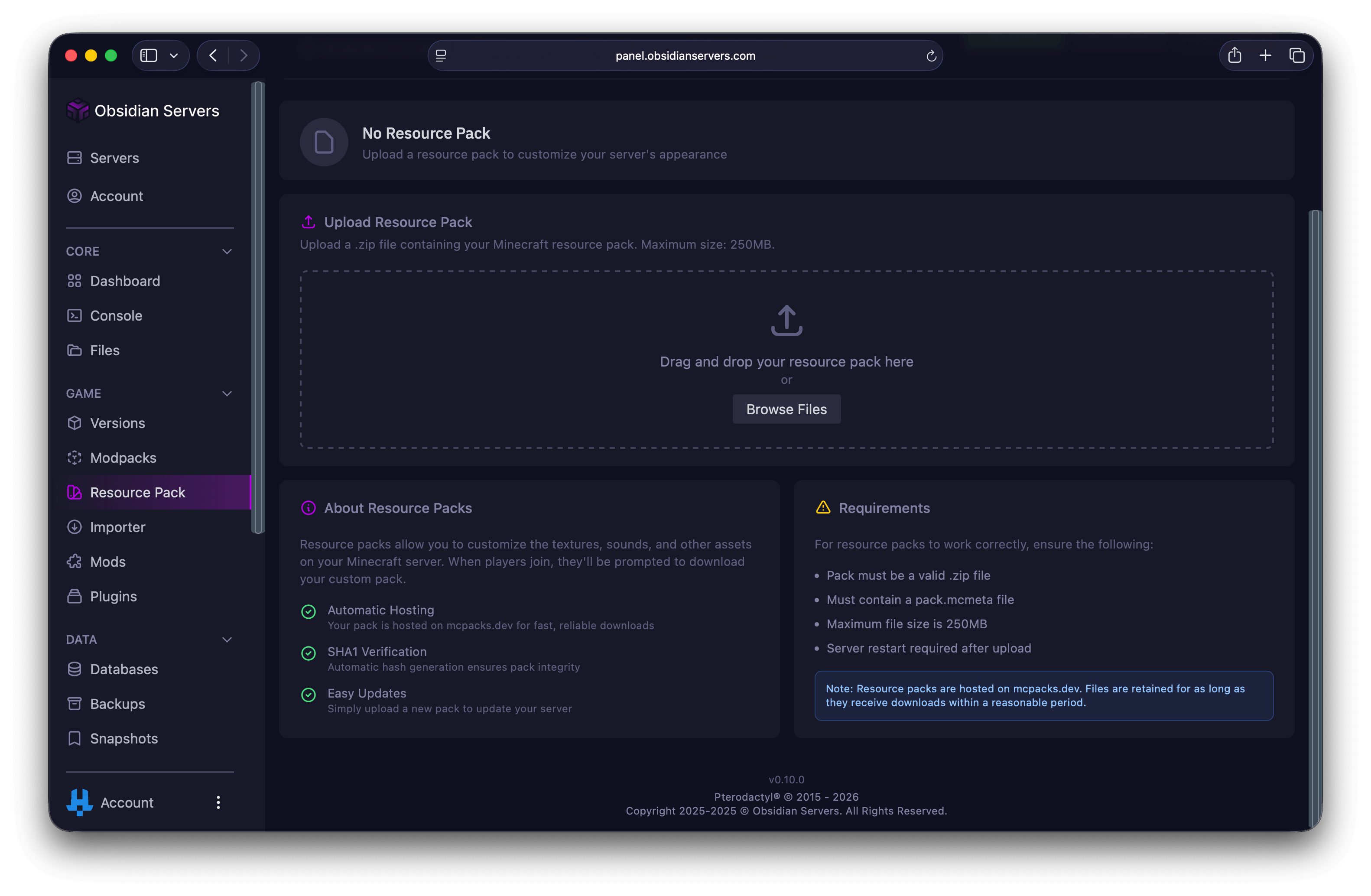
Uploading Your Resource Pack
- Log in to the Game Panel
- Select your server
- In the left menu, click Game
- Select Resource Pack
- Drag and drop your
.zipfile into the upload area, or click Browse Files to select it - Optionally configure the settings below
- Click Upload & Apply
- Restart your server for the changes to take effect
Resource Pack Settings
Before uploading, you can configure two optional settings:
Require players to use this resource pack - When enabled, players who decline the resource pack will be disconnected from the server. Useful if your server relies on custom textures.
Custom Prompt - A message shown to players when they are prompted to download the pack. You can use plain text or JSON formatting for colours and styles. A link to a JSON Text Generator is provided in the panel for help with formatting (1.16+).
You can change these settings at any time after uploading by scrolling to the Settings section on the same page and clicking Save Settings. A server restart is required for changes to take effect.
Updating Your Resource Pack
To update your resource pack, simply upload a new .zip file through the Resource Pack Manager. The old pack will be replaced and a new SHA1 hash will be generated automatically.
Removing Your Resource Pack
- On the Resource Pack page, click the Remove button next to your current pack
- Confirm the removal
- Restart your server
What You Get
Once uploaded, the Resource Pack Manager shows you:
- Download URL - The hosted link to your pack on mcpacks.dev
- SHA1 Hash - Automatically generated for pack integrity verification
- Required - Whether players must accept the pack
- Custom Prompt - Your configured prompt message, if any
Requirements
- Your resource pack must be a
.zipfile - Maximum file size is 250MB
- The
.zipmust contain apack.mcmetafile at the root level (not nested inside another folder) - Your server must be restarted after uploading or changing settings
Note: Resource packs hosted on mcpacks.dev are retained as long as they continue to receive downloads.
Using mcpacks.dev Manually
If you prefer to configure your server manually, or you are not using the Game Panel's built-in manager, you can use mcpacks.dev directly.
- Go to mcpacks.dev
- Upload your resource pack
.zipfile - Copy the provided download URL and SHA1 hash
- On your server, open
server.propertiesin the File Manager - Set the following values:
resource-pack=https://mcpacks.dev/pack/your-pack-id/download
resource-pack-sha1=your-sha1-hash-here- Optionally configure these additional settings:
require-resource-pack=true
resource-pack-prompt={"text":"Please accept our resource pack!"}- Save the file and restart your server
Troubleshooting
Resource Pack Not Downloading
Make sure your server has been restarted after uploading the pack. If you configured things manually, verify that the download URL is a direct download link - pasting it into a browser should immediately download the file, not open a webpage.
Players See Outdated Textures
When you update a resource pack, a new SHA1 hash must be generated. The Resource Pack Manager handles this automatically, but if you configured things manually, make sure you update the resource-pack-sha1 value in server.properties with the new hash. Without the correct hash, Minecraft will not prompt players to re-download the pack.
Download Fails for Players
Check that your .zip file is structured correctly. The pack.mcmeta file and assets folder should be at the root level of the zip, not nested inside another folder. For example, opening the zip should show pack.mcmeta directly, not MyPack/pack.mcmeta.
Pack Works for Some Players but Not Others
Check the pack_format value in your pack.mcmeta file. Different Minecraft versions expect different format numbers. If some players are on a different version, the pack may not be compatible for them.
Need Help?
If you encounter any issues or need further assistance, you can reach us through:
- Support Ticket
- Discord Server - use the
/supportcommand - Email: [email protected]