All Obsidian Servers include basic DDoS protection by default, keeping your server safe from most common attacks. For servers that need an extra layer of security, Enhanced DDoS Protection adds Minecraft-specific Layer 7 filtering powered by TCPShield - available on all servers at no extra cost.
What is a DDoS Attack?
A DDoS (Distributed Denial of Service) attack is when someone floods your server with fake traffic to overwhelm it, making it slow or completely unreachable for your players. Game servers are common targets because they are publicly accessible and disrupting them can be as simple as sharing the server's IP address.
These attacks can range from simple connection floods to more sophisticated attacks that target the Minecraft protocol itself, sending fake player connections or malformed packets designed to crash or lag your server.
What Enhanced Protection Does
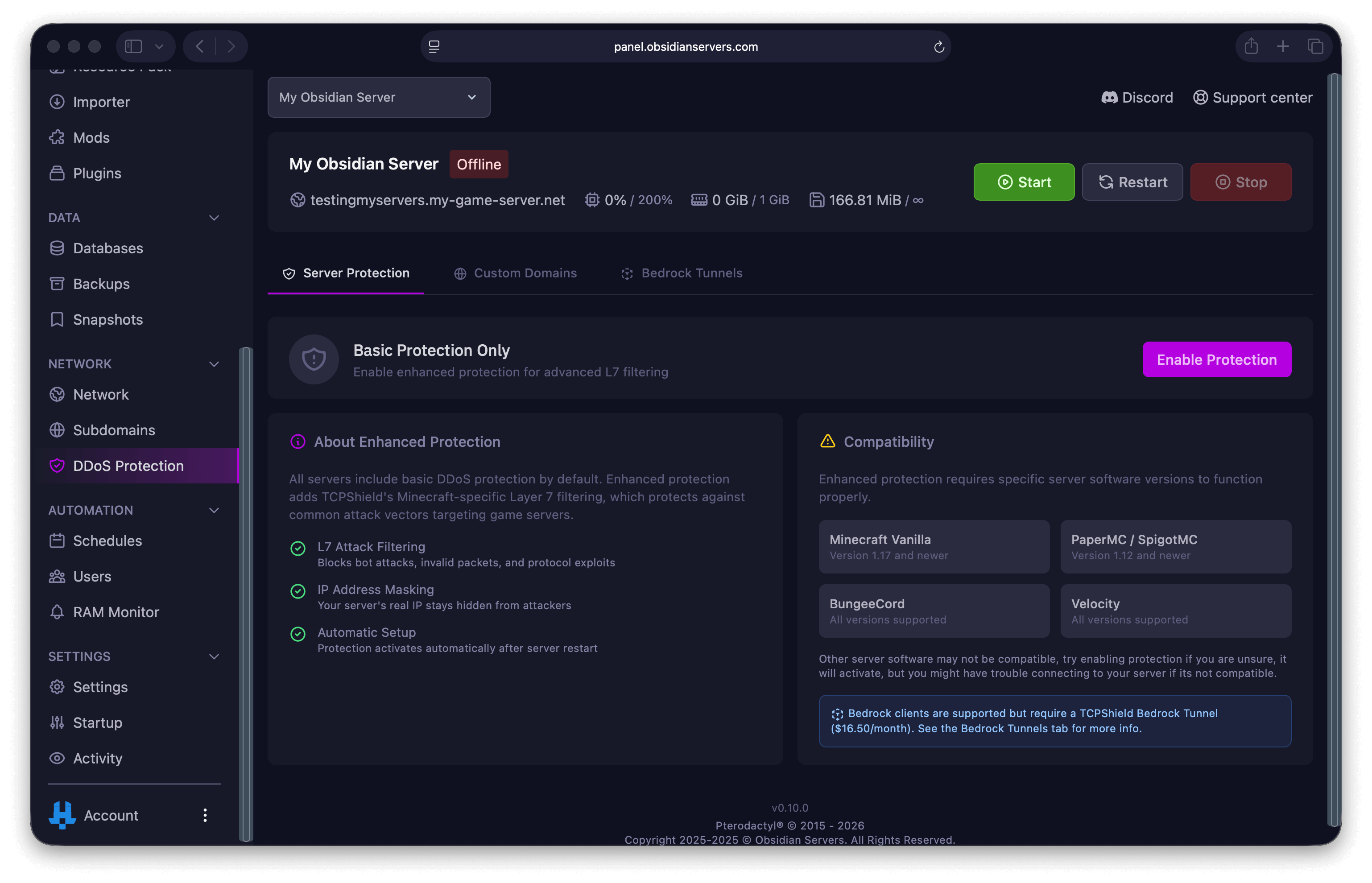
Enhanced DDoS Protection goes beyond basic network-level filtering by inspecting Minecraft traffic specifically. When enabled, it provides three key benefits:
L7 Attack Filtering
Layer 7 (application-level) filtering analyses incoming traffic at the Minecraft protocol level. It blocks bot attacks, invalid packets, and protocol exploits before they ever reach your server.
IP Address Masking
Your server's real IP address stays hidden behind the protection network. Players connect through the protection layer, so your actual server IP is never exposed. This prevents attackers from targeting your server directly.
Automatic Configuration
Once enabled, the protection configures itself automatically after your server restarts. The Obsidian Loader (a built-in tool that runs when your server starts) handles all the technical configuration behind the scenes - no manual setup needed on your end.
Setting Up a Subdomain
Enhanced DDoS Protection requires a subdomain to work. This is because all player traffic needs to route through the protection network, and a subdomain provides the connection point for that.
Important: Your server cannot be started or restarted until a subdomain is set up when DDoS protection is enabled. You can create one here beforehand, or you will be prompted to create one when enabling protection.
If you already have a subdomain set up, you can skip this section.
Creating a Subdomain
- Log in to the Game Panel
- Select your server
- In the left menu, click Network
- Select DDoS Protection
- If you do not have a subdomain yet, you will be prompted to create one
- Enter your desired subdomain name (e.g.,
your-server) - Your subdomain will be created as
your-server.obby.host
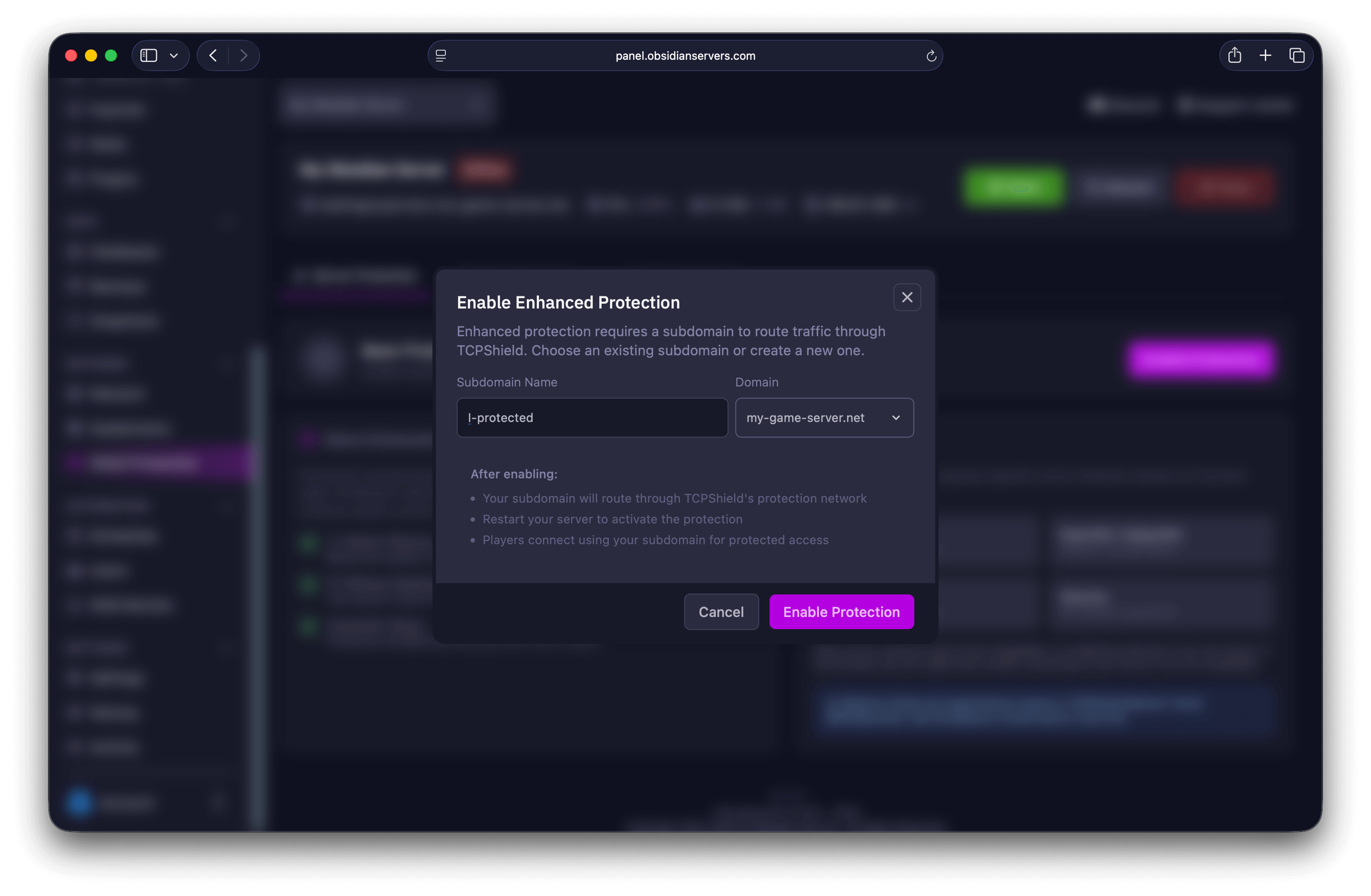
You can also create subdomains from the Network > Subdomains page.
Enabling Enhanced Protection
Once you have a subdomain, you can enable Enhanced DDoS Protection.
Step-by-Step
- Log in to the Game Panel
- Select your server
- In the left menu, click Network
- Select DDoS Protection
- Go to the Server Protection tab
- Click Enable
- Select your subdomain (or create one if prompted)
- Confirm the action
Restart Your Server
After enabling protection, you must restart your server for it to take effect. Click the Restart button on your server's Console page. The Obsidian Loader will automatically configure the protection during startup.
You will see output similar to this in your console:
[Obsidian Loader]: -----------------------------------
[Obsidian Loader]: Server Loader Starting...
[Obsidian Loader]: Configuring TCPShield proxy protocol...
[Obsidian Loader]: Server passed all checks, Booting...
Verifying Protection is Active
Once your server has restarted:
- Go to Network > DDoS Protection
- The Server Protection tab should show protection as Enabled
- Your connection address will be your subdomain (e.g.,
your-server.obby.host) - Have a player connect using the subdomain to confirm everything is working
Your Connection Address Changes
After enabling protection, players must connect using your subdomain (e.g., your-server.obby.host) instead of the direct IP address. Your old direct IP will no longer work for player connections while protection is enabled. Make sure to:
- Inform your players of the new address
- Update your server listing on any server lists
- Update any DNS records if you use a custom domain
Compatibility Note
Some server software may not be fully compatible with Enhanced DDoS Protection. If you experience issues after enabling it, check the Troubleshooting section below.
Disabling Protection
If you need to turn off Enhanced DDoS Protection:
- Go to Network > DDoS Protection
- On the Server Protection tab, click Disable
- Confirm the action
- Restart your server
After disabling, your server's connection address will revert to the direct IP and port shown on the Console page. Your subdomain will remain available if you want to re-enable protection later.
Custom Domains
If you use a custom domain to connect to your server (e.g., play.yourdomain.com), it will continue to work with Enhanced DDoS Protection enabled. The setup process for custom domains is the same whether or not protection is active.
For instructions on connecting a custom domain, see Connecting a Custom Domain.
Bedrock Tunnels (Coming Soon)
Bedrock Tunnels will allow Bedrock Edition players to connect to your Java server through the DDoS protection network. This feature is currently in development.
Join the Discord Server to stay updated on when Bedrock Tunnels become available.
Troubleshooting
Cannot Connect After Enabling Protection
If players cannot connect after enabling Enhanced DDoS Protection:
- Restart your server - Protection only activates after a restart. Make sure you have fully restarted (not just reloaded) your server
- Use your subdomain - Players must connect using your subdomain (e.g.,
your-server.obby.host), not the direct IP address - Check the console - Look for the Obsidian Loader messages during startup to confirm protection was configured
- Wait a moment - It may take a minute after the server starts for the protection network to register your server
Server Software Compatibility Issues
Some server software may not work correctly with Enhanced DDoS Protection. If your server crashes or behaves unexpectedly after enabling protection:
- Try disabling protection from the Server Protection tab
- Restart your server
- If the issue resolves, your server software may not be compatible
- Open a support ticket and let us know which server software you are using so we can help
Players Showing the Same IP Address
If all players appear to have the same IP address (which can break IP bans and security plugins), the proxy protocol configuration may not be working correctly. This usually resolves itself after a full server restart. If the issue persists, open a support ticket for assistance.
Protection Not Activating on Startup
If you do not see the Obsidian Loader messages in your console during startup, or the Loader reports an error:
- Make sure DDoS protection is still showing as Enabled in the panel
- Try a full restart (stop the server completely, then start it again)
- If the Loader continues to show errors, open a support ticket with a screenshot of the console output
Related Guides
- Connecting a Custom Domain - Use your own domain with your server
- Getting Started with Your Server - Initial server setup and basics
Need Help?
If you have questions about DDoS Protection or need help with setup:
- Support Ticket
- Discord Server - use the
/supportcommand - Email: [email protected]